Use your browser’s Find (Ctrl+F / ⌘F) to locate a setting. Open its row for the full explanation and limits. Source-check time is a verification timestamp, not a script publication date.
Planner Engine
7 inputsPlanner Mode
- Input type
string- Source default
"Auto"- Available options
["Auto", "Bullish Targets", "Bearish Targets"]- Minimum
Not specified in source- Maximum
Not specified in source- Step
Not specified in source
What it controls
Controls which target-ladder side is allowed to evaluate.
Effect on the script
Auto registers bullish pivots only with close above the fast EMA and the fast EMA above the slow EMA; bearish registration uses the inverse. Side stays frozen until a new eligible pivot registers.
When to adjust it
Select a side only when the chart study is deliberately restricted to that scenario.
Interpretation and limits
Choosing a side does not validate that directional thesis or predict the next move.
Original input tooltip
Controls which target-ladder side is allowed to evaluate. Auto registers bullish pivots only with close above the fast EMA and the fast EMA above the slow EMA; bearish registration uses the inverse. Side stays frozen until a new eligible pivot registers.
Swing Confirmation
- Input type
int- Source default
4- Available options
Not specified in source- Minimum
2- Maximum
12- Step
Not specified in source
What it controls
Controls the swing confirmation used to anchor the ladder from recent structure.
Effect on the script
Changes the confirmed-pivot qualification or separation requirement specified by the control.
When to adjust it
Adjust it when studying a different structural scale or the spacing allowed between compared pivots.
Interpretation and limits
Confirmed pivots require later information; a displayed historical pivot was not necessarily known at its own bar.
Original input tooltip
Controls the swing confirmation used to anchor the ladder from recent structure.
Structure Lookback
- Input type
int- Source default
44- Available options
Not specified in source- Minimum
14- Maximum
220- Step
Not specified in source
What it controls
Controls the baseline window for range, volatility, trend, and progress measurements.
Effect on the script
Changes the measurement horizon used by the oscillator, trend, range, or context component named by the setting.
When to adjust it
Change it when comparing a different analytical horizon and record the configuration alongside the observations.
Interpretation and limits
Different windows produce different contexts and are not evidence of an improved future result.
Original input tooltip
Controls the baseline window for range, volatility, trend, and progress measurements.
Target Ladder Scale
- Input type
string- Source default
"Balanced"- Available options
["Tight", "Balanced", "Wide"]- Minimum
Not specified in source- Maximum
Not specified in source- Step
Not specified in source
What it controls
Scales the structural and ATR unit at the knowledge candle.
Effect on the script
A minimum clearance beyond that candle's directional extreme keeps T1 initially unreached; all prices then remain frozen.
When to adjust it
Change it only when the specific analytical or presentation question in the tooltip changes.
Interpretation and limits
Record the configuration when comparing observations; a changed setting is not proof of a stronger future result.
Original input tooltip
Scales the structural and ATR unit at the knowledge candle. A minimum clearance beyond that candle's directional extreme keeps T1 initially unreached; all prices then remain frozen.
Confluence Strictness
- Input type
string- Source default
"Balanced"- Available options
["Relaxed", "Balanced", "Strict"]- Minimum
Not specified in source- Maximum
Not specified in source- Step
Not specified in source
What it controls
Scales heuristic trend, directional candle and target-proximity confluence.
Effect on the script
It does not alter frozen targets or observed OHLC touches.
When to adjust it
Compare requirements under a fixed symbol, timeframe, and remaining configuration.
Interpretation and limits
It does not alter frozen targets or observed OHLC touches.
Original input tooltip
Scales heuristic trend, directional candle and target-proximity confluence. It does not alter frozen targets or observed OHLC touches.
Show Invalidation Line
- Input type
bool- Source default
true- Available options
Not specified in source- Minimum
Not specified in source- Maximum
Not specified in source- Step
Not specified in source
What it controls
Shows or hides the optional invalidation reference line for the active ladder.
Effect on the script
Controls visibility of the chart element named by this setting.
When to adjust it
Toggle it to inspect that element or make space for the current chart review.
Interpretation and limits
A visibility switch does not turn a visual reference into an executed order or validated result.
Original input tooltip
Shows or hides the optional invalidation reference line for the active ladder.
Observation Horizon
- Input type
int- Source default
176- Available options
Not specified in source- Minimum
20- Maximum
500- Step
Not specified in source
What it controls
Maximum subsequent closed candles observed per ladder.
Effect on the script
Final-bar touches are evaluated before expiry. Pending ladders are excluded from resolved percentages.
When to adjust it
Change it when studying another explicitly defined event or observation horizon.
Interpretation and limits
Pending ladders are excluded from resolved percentages.
Original input tooltip
Maximum subsequent closed candles observed per ladder. Final-bar touches are evaluated before expiry. Pending ladders are excluded from resolved percentages.
Visuals
7 inputsVisual Preset
- Input type
string- Source default
"Balanced"- Available options
["Clean", "Balanced", "Rich"]- Minimum
Not specified in source- Maximum
Not specified in source- Step
Not specified in source
What it controls
Controls chart annotation density.
Effect on the script
Clean keeps only the active ladder, Balanced keeps key historical labels, and Rich allows extra state labels.
When to adjust it
Use a calmer preset when annotations obscure current structure, or a richer one when reviewing the documented historical context.
Interpretation and limits
More visible labels do not mean more independent evidence, trades, or profitable opportunities.
Original input tooltip
Controls chart annotation density. Clean keeps only the active ladder, Balanced keeps key historical labels, and Rich allows extra state labels.
Target Band Transparency
- Input type
int- Source default
89- Available options
Not specified in source- Minimum
80- Maximum
98- Step
Not specified in source
What it controls
Controls target-band fill only.
Effect on the script
Lower values make the bands more visible; higher values keep them quieter. Clean and closed ladders retain at least 95% transparency. Labels, target prices, observations and alerts are unchanged.
When to adjust it
Adjust it when the relevant zone or state is difficult to see against the chart background.
Interpretation and limits
Contrast changes do not strengthen the underlying signal, observation, or market structure.
Original input tooltip
Controls target-band fill only. Lower values make the bands more visible; higher values keep them quieter. Clean and closed ladders retain at least 95% transparency. Labels, target prices, observations and alerts are unchanged.
Show Progress Meter
- Input type
bool- Source default
false- Available options
Not specified in source- Minimum
Not specified in source- Maximum
Not specified in source- Step
Not specified in source
What it controls
Shows a horizontal ladder-progress meter beneath the anchor for an at-a-glance read of the latest closed-price progress toward Target 3.
Effect on the script
This is independent of retained historical wick touches.
When to adjust it
Toggle it to inspect that element or make space for the current chart review.
Interpretation and limits
A visibility switch does not turn a visual reference into an executed order or validated result.
Original input tooltip
Shows a horizontal ladder-progress meter beneath the anchor for an at-a-glance read of the latest closed-price progress toward Target 3. This is independent of retained historical wick touches.
Minimum Label Score
- Input type
int- Source default
75- Available options
Not specified in source- Minimum
60- Maximum
95- Step
Not specified in source
What it controls
Filters secondary Rich-preset review labels by heuristic score.
Effect on the script
New ladders and observed target or terminal milestones remain visible.
When to adjust it
Adjust it when lower-priority annotations compete with the current chart context.
Interpretation and limits
A filtered label is not a removed historical outcome. Follow the tooltip for any milestones that bypass the filter.
Original input tooltip
Filters secondary Rich-preset review labels by heuristic score. New ladders and observed target or terminal milestones remain visible.
Ladder Projection Bars
- Input type
int- Source default
60- Available options
Not specified in source- Minimum
20- Maximum
260- Step
Not specified in source
What it controls
Controls how far the target bands are projected to the right.
Effect on the script
Controls the horizontal extent or placement of the relevant chart drawing in bars.
When to adjust it
Adjust it when the available forward chart space or the intended visual review area changes.
Interpretation and limits
Drawing farther to the right does not extend event validity or establish that price will reach a reference.
Original input tooltip
Controls how far the target bands are projected to the right.
State Label Cooldown
- Input type
int- Source default
50- Available options
Not specified in source- Minimum
50- Maximum
180- Step
Not specified in source
What it controls
Controls spacing for secondary Rich-preset state labels.
Effect on the script
Key ladder milestones bypass this cooldown; retained history is bounded.
When to adjust it
Adjust only after distinguishing display-label spacing from a cooldown that changes accepted-event selection.
Interpretation and limits
A selection cooldown can change the sample. Display spacing alone must not be interpreted as better analytical performance.
Original input tooltip
Controls spacing for secondary Rich-preset state labels. Key ladder milestones bypass this cooldown; retained history is bounded.
Label Font Size
- Input type
string- Source default
"Normal"- Available options
["Small", "Normal", "Large"]- Minimum
Not specified in source- Maximum
Not specified in source- Step
Not specified in source
What it controls
Controls visible chart label size.
Effect on the script
Controls the text-size mapping used by the relevant panel or chart-label renderer.
When to adjust it
Adjust it for the chart size and viewing distance while preserving readable boundaries and state information.
Interpretation and limits
A larger font can increase chart overlap. Text size does not change the analytical observations.
Original input tooltip
Controls visible chart label size.
Panel
5 inputsShow Panel
- Input type
bool- Source default
true- Available options
Not specified in source- Minimum
Not specified in source- Maximum
Not specified in source- Step
Not specified in source
What it controls
Shows or hides the AGPro workflow panel.
Effect on the script
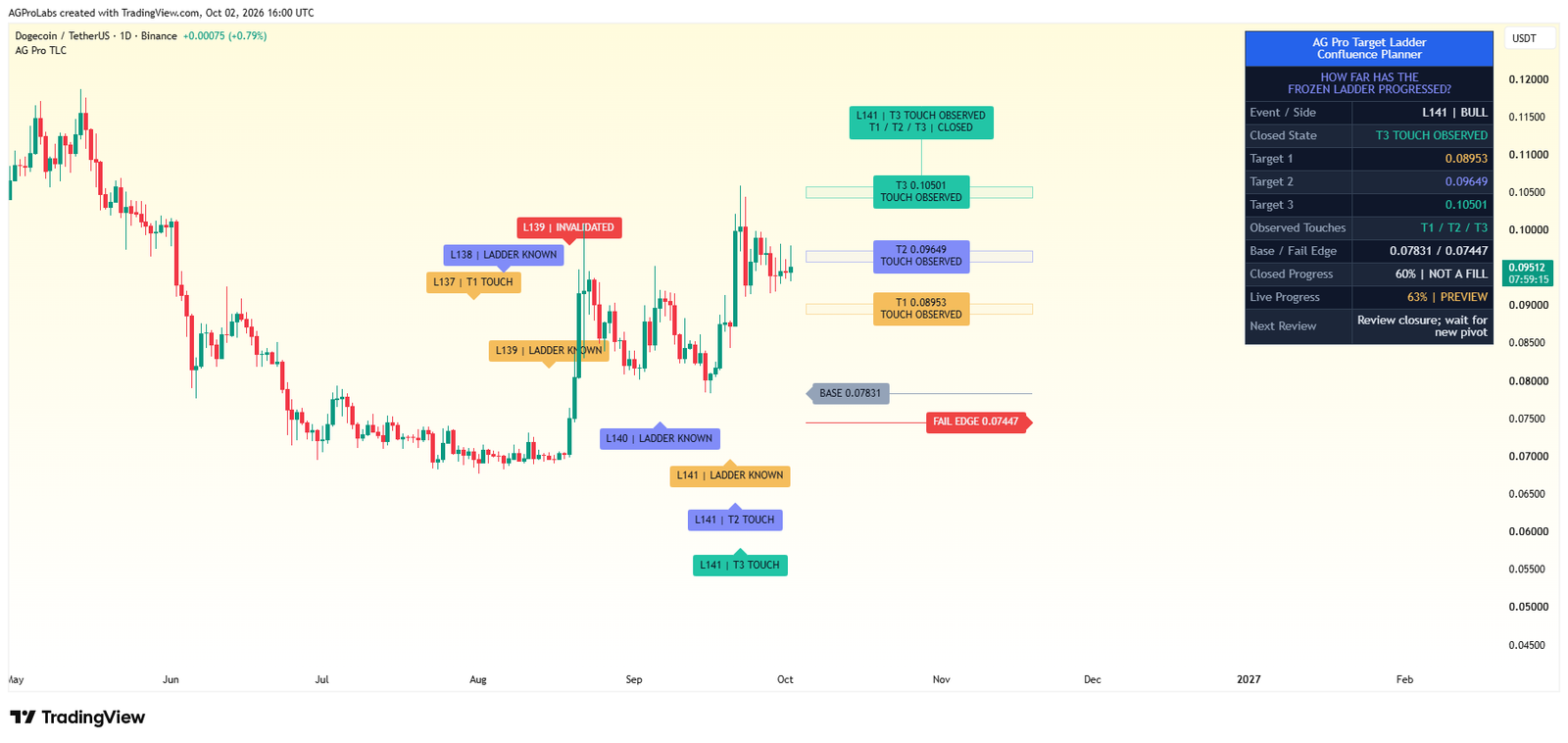
The panel summarizes plan side, target ladder, current progress, partial review, runner review, target hits, and the current analytical review.
When to adjust it
Show the panel to inspect the state and evidence, or hide it when chart space is the immediate priority.
Interpretation and limits
Hiding the panel is a presentation choice; do not treat missing rows as missing risk.
Original input tooltip
Shows or hides the AGPro workflow panel. The panel summarizes plan side, target ladder, current progress, partial review, runner review, target hits, and the current analytical review.
Panel Location
- Input type
string- Source default
"Top Right"- Available options
["Top Right", "Top Left", "Bottom Right", "Bottom Left"]- Minimum
Not specified in source- Maximum
Not specified in source- Step
Not specified in source
What it controls
Selects where the workflow panel is placed on the chart.
Effect on the script
Selects the table position used by the panel renderer.
When to adjust it
Move the panel when it overlaps active candles, the current workflow zone, or reference labels.
Interpretation and limits
Panel placement changes presentation, not the detected context or observation accounting.
Panel Theme
- Input type
string- Source default
"Dark"- Available options
["Dark", "Light"]- Minimum
Not specified in source- Maximum
Not specified in source- Step
Not specified in source
What it controls
Selects the available panel contrast theme.
Effect on the script
Selects the panel background, border, and text color scheme used for contrast.
When to adjust it
Choose the available theme that keeps the panel readable against the chart background.
Interpretation and limits
A theme changes appearance; it does not change event qualification or statistical evidence.
Panel Font Size
- Input type
string- Source default
"Normal"- Available options
["Small", "Normal", "Large"]- Minimum
Not specified in source- Maximum
Not specified in source- Step
Not specified in source
What it controls
Controls the text size for panel font size.
Effect on the script
Controls the text-size mapping used by the relevant panel or chart-label renderer.
When to adjust it
Adjust it for the chart size and viewing distance while preserving readable boundaries and state information.
Interpretation and limits
A larger font can increase chart overlap. Text size does not change the analytical observations.
Panel Page
- Input type
string- Source default
"Overview"- Available options
["Overview", "Statistics", "Audit"]- Minimum
Not specified in source- Maximum
Not specified in source- Step
Not specified in source
What it controls
Compact pages separate current targets, descriptive observations and provenance without widening the panel.
Effect on the script
Selects which already calculated information is presented in the visible panel or summary view.
When to adjust it
Use the current-state view for orientation and the available evidence/audit view when checking observation provenance and exclusions.
Interpretation and limits
A compact or hidden view does not remove the limitations of the underlying observations.
Original input tooltip
Compact pages separate current targets, descriptive observations and provenance without widening the panel.
Keep the settings in context
Change one analytical assumption at a time and compare the same instrument, timeframe and history. A chart reference, score, observation rate or input default does not establish a trade fill, a forward probability or a guaranteed outcome.
Return to the product overview · View this script on TradingView