Use your browser’s Find (Ctrl+F / ⌘F) to locate a setting. Open its row for the full explanation and limits. Source-check time is a verification timestamp, not a script publication date.
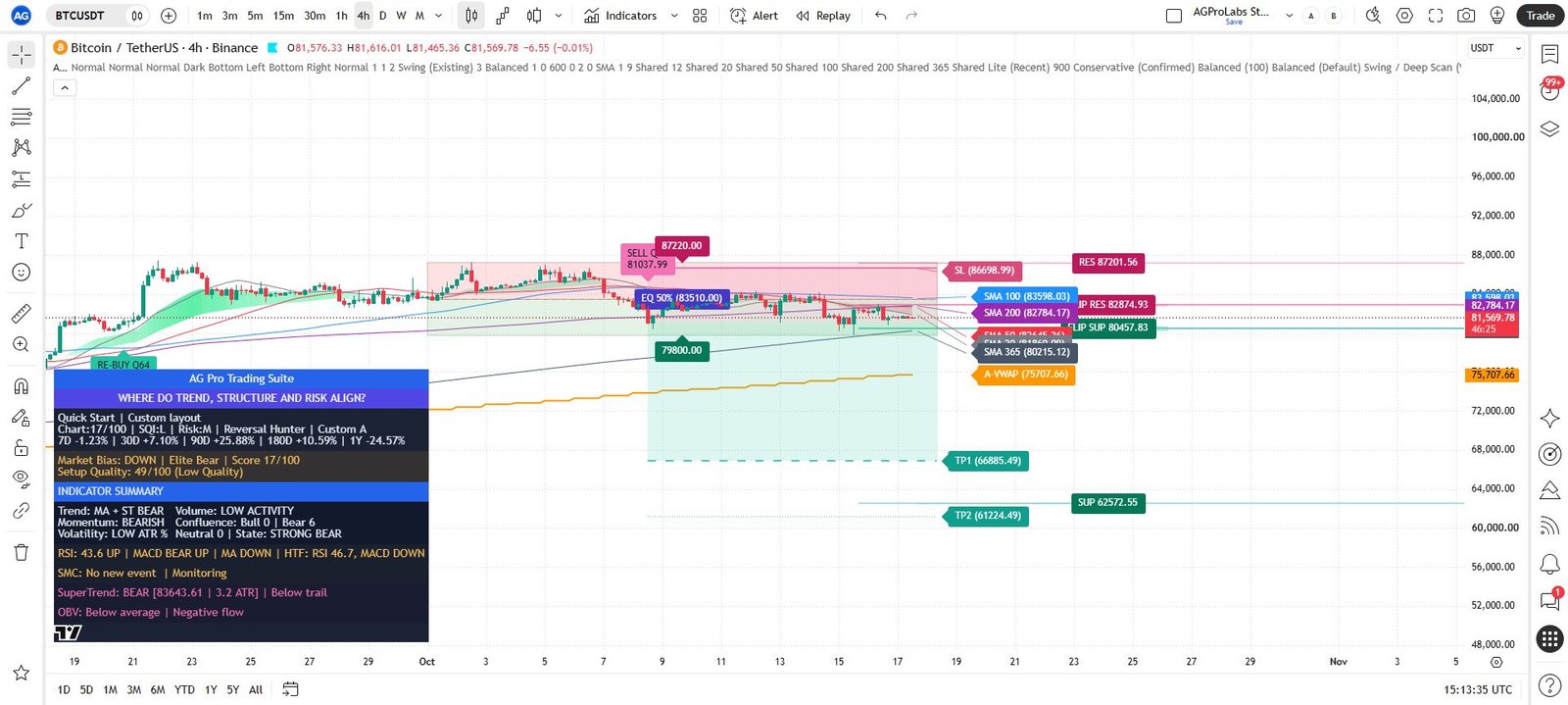
Appearance & UI
9 inputsFont Size (Main)
- Input type
string- Source default
"Normal"- Available options
["Tiny", "Small", "Normal", "Large", "Huge"]- Minimum
Not specified in source- Maximum
Not specified in source- Step
Not specified in source- Editable input
true
What it controls
Changes the size of dashboard headings and values so the main context can be read at your normal screen distance.
Effect on the script
Text size for dashboard headings and values. Normal is the default; smaller sizes leave more room for the chart.
When to adjust it
Adjust when the dashboard is too small to read or occupies too much of the chart.
Interpretation and limits
Text size is a display choice and does not change signal quality or calculation thresholds.
Original input tooltip
Text size for dashboard headings and values. Normal is the default; smaller sizes leave more room for the chart.
Font Size (Detail)
- Input type
string- Source default
"Normal"- Available options
["Tiny", "Small", "Normal", "Large", "Huge"]- Minimum
Not specified in source- Maximum
Not specified in source- Step
Not specified in source- Editable input
true
What it controls
Controls the commentary text separately from the main dashboard values.
Effect on the script
Text size for detailed dashboard commentary. This does not change chart-label or Smart Swap text size.
When to adjust it
Use a smaller detail size when you want extended commentary without enlarging the entire panel.
Interpretation and limits
This does not set chart-label size or the Smart Swap panel's text size.
Original input tooltip
Text size for detailed dashboard commentary. This does not change chart-label or Smart Swap text size.
Font Size (Swap Panel)
- Input type
string- Source default
"Normal"- Available options
["Tiny", "Small", "Normal", "Large", "Huge"]- Minimum
Not specified in source- Maximum
Not specified in source- Step
Not specified in source- Editable input
true
What it controls
Sets text size for the optional Smart Swap panel independently of the main dashboard.
Effect on the script
Controls all text in the Smart Swap panel without changing the main dashboard or chart-label sizes.
When to adjust it
Adjust after choosing a compact or fuller Swap view so its explanatory fields remain readable.
Interpretation and limits
Larger text can require more panel space; it does not change candidate qualification.
Original input tooltip
Controls all text in the Smart Swap panel without changing the main dashboard or chart-label sizes.
Visual
- Input type
string- Source default
"Dark"- Available options
["Dark", "Light"]- Minimum
Not specified in source- Maximum
Not specified in source- Step
Not specified in source- Editable input
true
What it controls
Selects the suite panel palette for a dark or light presentation.
Effect on the script
Applies the selected palette to the suite panels. TradingView chart background settings are separate.
When to adjust it
Choose a palette that remains readable against your own TradingView chart background.
Interpretation and limits
The suite palette and TradingView's chart background settings are separate.
Original input tooltip
Applies the selected palette to the suite panels. TradingView chart background settings are separate.
Table Position
- Input type
string- Source default
"Bottom Left"- Available options
["Top Left", "Top Right", "Bottom Left", "Bottom Right"]- Minimum
Not specified in source- Maximum
Not specified in source- Step
Not specified in source- Editable input
true
What it controls
Places the main dashboard in the selected chart corner.
Effect on the script
Positions the main dashboard. Smart Swap has its own independent position setting.
When to adjust it
Move it when the panel overlaps price action or another tool you need to inspect.
Interpretation and limits
Smart Swap has its own panel position; moving the main dashboard does not move both panels.
Original input tooltip
Positions the main dashboard. Smart Swap has its own independent position setting.
Swap Panel Position
- Input type
string- Source default
"Bottom Right"- Available options
["Top Left", "Top Right", "Bottom Left", "Bottom Right"]- Minimum
Not specified in source- Maximum
Not specified in source- Step
Not specified in source- Editable input
true
What it controls
Positions the Smart Swap panel separately from the main dashboard.
Effect on the script
Positions the Smart Swap panel independently from the main dashboard.
When to adjust it
Use a different corner when both panels are visible or when the Swap view needs more space.
Interpretation and limits
Position changes improve readability and do not change the comparison universe or timing.
Original input tooltip
Positions the Smart Swap panel independently from the main dashboard.
Hide Main Dashboard
- Input type
bool- Source default
false- Available options
[]- Minimum
Not specified in source- Maximum
Not specified in source- Step
Not specified in source- Editable input
true
What it controls
Hides the main table while leaving the chart available for a cleaner visual inspection.
Effect on the script
Hides only the main dashboard. Signals, risk lifecycle and enabled analytical modules continue to run.
When to adjust it
Use temporarily when the panel obstructs a chart detail or while comparing drawings.
Interpretation and limits
Hiding the dashboard does not by itself switch off the signal engine or enabled analytical modules.
Original input tooltip
Hides only the main dashboard. Signals, risk lifecycle and enabled analytical modules continue to run.
Hide Context Header
- Input type
bool- Source default
false- Available options
[]- Minimum
Not specified in source- Maximum
Not specified in source- Step
Not specified in source- Editable input
true
What it controls
Hides the context block below the title without disabling its underlying calculations.
Effect on the script
Hides the context block below the title without disabling its underlying calculations.
When to adjust it
Hide it when the context rows crowd the main panel, while keeping the rows needed for your review visible.
Interpretation and limits
Only the header presentation is hidden; its underlying market calculations continue.
Original input tooltip
Hides the context block below the title without disabling its underlying calculations.
Size of All Labels
- Input type
string- Source default
"Normal"- Available options
["Tiny", "Small", "Normal", "Large", "Huge"]- Minimum
Not specified in source- Maximum
Not specified in source- Step
Not specified in source- Editable input
true
What it controls
Sets the font size of chart labels and badges, including moving-average, structural and risk references.
Effect on the script
Font size for chart badges and labels, including S/R, MA and TP/SL. Larger fonts can increase crowding at the right edge.
When to adjust it
Adjust for your chart zoom, monitor size and the density of right-edge references.
Interpretation and limits
Large labels can crowd each other. Change density or chart space as well as font size.
Original input tooltip
Font size for chart badges and labels, including S/R, MA and TP/SL. Larger fonts can increase crowding at the right edge.
Context Header Details
5 inputsShow Dashboard Slogan
- Input type
bool- Source default
true- Available options
[]- Minimum
Not specified in source- Maximum
Not specified in source- Step
Not specified in source- Editable input
true
What it controls
Shows the 'Where do trend, structure and risk align?' slogan row below the main dashboard title.
Effect on the script
Shows the 'Where do trend, structure and risk align?' slogan row below the main dashboard title. This is display-only and does not change calculations or signals.
When to adjust it
Show it when the reminder helps maintain the context–structure–risk review order; hide it for a shorter dashboard.
Interpretation and limits
The slogan is display text and has no effect on signals or calculations.
Original input tooltip
Shows the 'Where do trend, structure and risk align?' slogan row below the main dashboard title. This is display-only and does not change calculations or signals.
Show Quick Start Line
- Input type
bool- Source default
true- Available options
[]- Minimum
Not specified in source- Maximum
Not specified in source- Step
Not specified in source- Editable input
true
What it controls
Shows the Quick Start preset/layout line.
Effect on the script
Shows the Quick Start preset/layout line. This is display-only and does not change calculations, signals or presets.
When to adjust it
Show it when you want the active QuickStart layout identified on the chart.
Interpretation and limits
Hiding this line does not change the selected preset or restore manual rows.
Original input tooltip
Shows the Quick Start preset/layout line. This is display-only and does not change calculations, signals or presets.
Show Row 1: Context & Score
- Input type
bool- Source default
true- Available options
[]- Minimum
Not specified in source- Maximum
Not specified in source- Step
Not specified in source- Editable input
true
What it controls
Shows market bias, chart score and setup quality in the context block.
Effect on the script
Shows market bias, chart score and setup quality in the context block. These measures answer different questions; they are not a win probability.
When to adjust it
Keep it visible when comparing market bias, chart score and setup quality as separate observations.
Interpretation and limits
The three measures answer different questions; a score is not a win probability.
Original input tooltip
Shows market bias, chart score and setup quality in the context block. These measures answer different questions; they are not a win probability.
Show Row 2: Asset Performance
- Input type
bool- Source default
true- Available options
[]- Minimum
Not specified in source- Maximum
Not specified in source- Step
Not specified in source- Editable input
true
What it controls
Shows the chart asset's completed Daily performance references.
Effect on the script
Shows the chart asset's completed Daily performance references. It is separate from the portfolio monitor.
When to adjust it
Use it when completed Daily performance of the active chart asset is part of the review.
Interpretation and limits
These are chart-asset performance references, separate from portfolio totals.
Original input tooltip
Shows the chart asset's completed Daily performance references. It is separate from the portfolio monitor.
Show Row 3: Strategy Policy
- Input type
bool- Source default
false- Available options
[]- Minimum
Not specified in source- Maximum
Not specified in source- Step
Not specified in source- Editable input
true
What it controls
Shows the active strategy policy for context.
Effect on the script
Shows the active strategy policy for context. This row does not create or authorize a trade.
When to adjust it
Enable it when checking which strategy policy is currently active.
Interpretation and limits
Showing a policy does not create a directional event or authorize a transaction.
Original input tooltip
Shows the active strategy policy for context. This row does not create or authorize a trade.
On-Chart Indicators
22 inputsShow SuperTrend Line
- Input type
bool- Source default
false- Available options
[]- Minimum
Not specified in source- Maximum
Not specified in source- Step
Not specified in source- Editable input
true
What it controls
Displays the SuperTrend reference line.
Effect on the script
Displays the SuperTrend reference line. Hiding it does not remove SuperTrend from active signal or score calculations.
When to adjust it
Enable the line when its location is useful for chart inspection, or hide it to reduce overlap.
Interpretation and limits
The analytical SuperTrend contribution can remain active when its line is hidden.
Original input tooltip
Displays the SuperTrend reference line. Hiding it does not remove SuperTrend from active signal or score calculations.
Thickness
SuperTrend line
- Input type
int- Source default
1- Available options
[]- Minimum
1- Maximum
5- Step
Not specified in source- Editable input
true
What it controls
Thickness of the visible SuperTrend line.
Effect on the script
Thickness of the visible SuperTrend line. Has no effect while the line is hidden.
When to adjust it
Change it when the visible SuperTrend line is difficult to distinguish from other references.
Interpretation and limits
It affects the drawn line only and has no visible effect while that line is hidden.
Original input tooltip
Thickness of the visible SuperTrend line. Has no effect while the line is hidden.
Show Period VWAP Line
- Input type
bool- Source default
false- Available options
[]- Minimum
Not specified in source- Maximum
Not specified in source- Step
Not specified in source- Editable input
true
What it controls
Shows the VWAP reference associated with the selected reset period.
Effect on the script
Shows the selected Session, Week or Month VWAP line.
When to adjust it
Use when session, weekly or monthly volume-weighted location is relevant to your review.
Interpretation and limits
The VWAP reset period is set separately; showing the line does not select its period.
Original input tooltip
Shows the selected Session, Week or Month VWAP line.
Thickness
Period VWAP line
- Input type
int- Source default
1- Available options
[]- Minimum
1- Maximum
5- Step
Not specified in source- Editable input
true
What it controls
Thickness of the visible Period VWAP line.
Effect on the script
Thickness of the visible Period VWAP line. Choose its reset period in Optional Indicators.
When to adjust it
Change it when the selected Period VWAP needs more or less visual prominence.
Interpretation and limits
Choose Session, Week or Month separately; thickness does not change the reset period.
Original input tooltip
Thickness of the visible Period VWAP line. Choose its reset period in Optional Indicators.
Show Anchored VWAP Line
- Input type
bool- Source default
true- Available options
[]- Minimum
Not specified in source- Maximum
Not specified in source- Step
Not specified in source- Editable input
true
What it controls
Displays the selected anchored or rolling volume-weighted reference on the price chart.
Effect on the script
Displays the selected anchored or rolling VWAP reference. Choose its start mode in Optional Indicators.
When to adjust it
Use to inspect reactions, distance or extensions relative to the chosen anchor framework.
Interpretation and limits
Confirm the start mode before interpreting the line; different anchors answer different questions.
Original input tooltip
Displays the selected anchored or rolling VWAP reference. Choose its start mode in Optional Indicators.
Thickness
Anchored VWAP line
- Input type
int- Source default
2- Available options
[]- Minimum
1- Maximum
5- Step
Not specified in source- Editable input
true
What it controls
Thickness of the visible Anchored VWAP line.
Effect on the script
Thickness of the visible Anchored VWAP line.
When to adjust it
Change it to make the displayed anchored or rolling VWAP legible at your normal zoom.
Interpretation and limits
It does not select the anchor or change the underlying reference calculation.
Original input tooltip
Thickness of the visible Anchored VWAP line.
Show Buy/Sell Signal Labels
- Input type
bool- Source default
true- Available options
[]- Minimum
Not specified in source- Maximum
Not specified in source- Step
Not specified in source- Editable input
true
What it controls
Displays confirmed directional transition markers on the chart.
Effect on the script
Displays confirmed BUY, SELL and permitted re-entry markers. This visibility switch does not relax signal rules or disable risk lifecycle tracking.
When to adjust it
Keep visible when reviewing the event sequence; hide temporarily when studying other geometry.
Interpretation and limits
This is visibility control. Hiding labels does not make active signal rules more or less selective.
Original input tooltip
Displays confirmed BUY, SELL and permitted re-entry markers. This visibility switch does not relax signal rules or disable risk lifecycle tracking.
Buy/Sell Timing Profile
- Input type
string- Source default
"Swing (Existing)"- Available options
["Swing (Existing)", "Intraday (1m-60m)"]- Minimum
Not specified in source- Maximum
Not specified in source- Step
Not specified in source- Editable input
true
What it controls
Swing uses the existing 24/12/4-hour Strict/Balanced/Loose re-entry delays and cycle limit.
Effect on the script
Swing uses the existing 24/12/4-hour Strict/Balanced/Loose re-entry delays and cycle limit. Intraday uses 12/6/3 chart intervals in elapsed time plus a daily limit per direction. Intraday supports standard 1-60 minute charts; others fall back to Swing. All safety and completed-candle gates still apply.
When to adjust it
Choose the event timing framework before comparing same-direction re-entry behavior.
Interpretation and limits
Intraday supports standard 1–60 minute charts; unsupported charts fall back to Swing. Confirmation gates remain active.
Original input tooltip
Swing uses the existing 24/12/4-hour Strict/Balanced/Loose re-entry delays and cycle limit. Intraday uses 12/6/3 chart intervals in elapsed time plus a daily limit per direction. Intraday supports standard 1-60 minute charts; others fall back to Swing. All safety and completed-candle gates still apply.
Intraday Re-Entries per Direction / Trading Day
- Input type
int- Source default
3- Available options
[]- Minimum
1- Maximum
10- Step
Not specified in source- Editable input
true
What it controls
Intraday only: maximum RE-BUY and RE-SELL events per exchange trading day, counted separately.
Effect on the script
Intraday only: maximum RE-BUY and RE-SELL events per exchange trading day, counted separately. Opposite signals do not refill the quota. A new day resets capacity but never creates a signal by itself.
When to adjust it
Adjust the permitted number of same-direction Intraday re-entry events when evaluating that timing profile.
Interpretation and limits
The quota is separate for RE-BUY and RE-SELL per exchange trading day; a new day does not create a signal.
Original input tooltip
Intraday only: maximum RE-BUY and RE-SELL events per exchange trading day, counted separately. Opposite signals do not refill the quota. A new day resets capacity but never creates a signal by itself.
Buy/Sell Signal Strictness
- Input type
string- Source default
"Balanced"- Available options
["Strict (Rare)", "Balanced", "Loose (More Signals)"]- Minimum
Not specified in source- Maximum
Not specified in source- Step
Not specified in source- Editable input
true
What it controls
Changes how selective the directional and re-entry workflow is under the supported strictness choices.
Effect on the script
Strict is most selective; Balanced and Loose allow shorter confirmation/reset delays. Re-entries need SQI of at least 70/60/50 respectively, plus pullback, renewed impulse, cooldown and every active safety gate. More frequent signals do not imply better results.
When to adjust it
Compare selectivity as part of a recorded evaluation on the same chart and settings.
Interpretation and limits
More frequent labels are not evidence of a better process. Record changes before judging their outcomes.
Original input tooltip
Strict is most selective; Balanced and Loose allow shorter confirmation/reset delays. Re-entries need SQI of at least 70/60/50 respectively, plus pullback, renewed impulse, cooldown and every active safety gate. More frequent signals do not imply better results.
Allow Confirmed Same-Direction Re-Entry
- Input type
bool- Source default
true- Available options
[]- Minimum
Not specified in source- Maximum
Not specified in source- Step
Not specified in source- Editable input
true
What it controls
Allows a later same-direction event after the required reset, pullback and renewed-impulse conditions.
Effect on the script
Allows another signal in the same direction after a meaningful pullback, completed reset and renewed impulse. The selected timing profile, quota, SQI and safety filters still apply.
When to adjust it
Use when your analysis includes continuation reviews within a directional cycle.
Interpretation and limits
The switch does not create a signal on its own or remove active safety and qualification conditions.
Original input tooltip
Allows another signal in the same direction after a meaningful pullback, completed reset and renewed impulse. The selected timing profile, quota, SQI and safety filters still apply.
Maximum Same-Direction Re-Entries per Signal Cycle
- Input type
int- Source default
1- Available options
[]- Minimum
1- Maximum
3- Step
Not specified in source- Editable input
true
What it controls
Swing only: limits re-entries within a directional cycle.
Effect on the script
Swing only: limits re-entries within a directional cycle. A confirmed opposite signal starts a new cycle. Intraday uses its separate daily quota. Ignored when same-direction re-entry is off.
When to adjust it
Adjust the permitted same-direction re-entry count when using Swing and re-entry is enabled.
Interpretation and limits
This cycle limit is ignored by Intraday, which has its own daily quota.
Original input tooltip
Swing only: limits re-entries within a directional cycle. A confirmed opposite signal starts a new cycle. Intraday uses its separate daily quota. Ignored when same-direction re-entry is off.
Buy/Sell Label History (0=Auto)
- Input type
int- Source default
0- Available options
[]- Minimum
0- Maximum
300- Step
Not specified in source- Editable input
true
What it controls
Controls how many historical directional labels remain available for visual inspection.
Effect on the script
Maximum retained historical BUY/SELL labels. Zero uses the automatic display limit. Increasing this reveals older markers but does not change signal rules.
When to adjust it
Increase only when an earlier event sequence is needed; use a restrained view for routine review.
Interpretation and limits
Displaying more history does not change the signal rules or create a forward performance record.
Original input tooltip
Maximum retained historical BUY/SELL labels. Zero uses the automatic display limit. Increasing this reveals older markers but does not change signal rules.
Signal Calculation History (Bars)
- Input type
int- Source default
600- Available options
[]- Minimum
200- Maximum
5000- Step
Not specified in source- Editable input
true
What it controls
Requested recent signal-processing window.
Effect on the script
Requested recent signal-processing window. Effective minimum also depends on label-history capacity; Auto can keep a wider minimum window. Larger values can reveal older transitions and increase loading work. Default 600; this does not change signal rules.
When to adjust it
Increase it only when older directional events are needed for a documented review.
Interpretation and limits
It is a requested processing window; label capacity can impose an effective minimum and more history increases loading work.
Original input tooltip
Requested recent signal-processing window. Effective minimum also depends on label-history capacity; Auto can keep a wider minimum window. Larger values can reveal older transitions and increase loading work. Default 600; this does not change signal rules.
Show On-Chart Risk Blocks (TP/SL)
- Input type
bool- Source default
true- Available options
[]- Minimum
Not specified in source- Maximum
Not specified in source- Step
Not specified in source- Editable input
true
What it controls
Shows scenario stop and target drawings alongside the active directional context.
Effect on the script
Display-only control for TP/SL drawings. Hiding the drawings does not disable the active risk-package state or lifecycle alerts.
When to adjust it
Keep visible when comparing invalidation and target geometry; hide for a focused visual inspection.
Interpretation and limits
Drawing visibility does not place, cancel or manage an order, and does not necessarily disable lifecycle tracking.
Original input tooltip
Display-only control for TP/SL drawings. Hiding the drawings does not disable the active risk-package state or lifecycle alerts.
Show R:R & Unlevered Size Label
- Input type
bool- Source default
true- Available options
[]- Minimum
Not specified in source- Maximum
Not specified in source- Step
Not specified in source- Editable input
true
What it controls
Shows R:R and an analytical unit cap using the separate Sizing Capital and Sizing Currency inputs.
Effect on the script
Controls the scenario label that displays R:R and the optional unlevered unit cap. The cap is unavailable in Sample Portfolio mode, with a nonpositive budget, a quote-currency mismatch, or an unsupported chart/instrument.
When to adjust it
Enable it to inspect the R:R label and optional analytical unlevered unit cap beside the scenario.
Interpretation and limits
The unit cap needs an explicit capital budget and exactly matching quote currency; unsupported contracts show N/A. It omits fees, slippage and order increments. The unit-cap illustration requires Custom Portfolio; Sample Portfolio returns unavailable.
Original input tooltip
Shows R:R and an analytical unit cap using the separate Sizing Capital and Sizing Currency inputs. Currency must exactly match the chart quote currency. Unsupported contracts show N/A. Fees, slippage and exchange order increments are not modeled.
Sizing Capital (Quote Currency)
- Input type
float- Source default
0.0- Available options
[]- Minimum
0.0- Maximum
Not specified in source- Step
Not specified in source- Editable input
true
What it controls
Explicit capital budget denominated in Sizing Currency.
Effect on the script
The explicit budget is passed to the analytical unit-cap calculation only in Custom Portfolio mode after currency and instrument checks. It is not read from portfolio totals and it does not change portfolio valuation.
When to adjust it
Enter an explicit capital budget only when you want the analytical unit-cap illustration; leave 0 to disable it.
Interpretation and limits
This is a quote-currency budget, independent of portfolio totals. It does not change holdings or portfolio accounting. The unit-cap illustration requires Custom Portfolio; Sample Portfolio returns unavailable.
Original input tooltip
Explicit capital budget denominated in Sizing Currency. Zero disables size estimates. This value is independent of portfolio totals and does not change portfolio accounting.
Sizing Currency
- Input type
string- Source default
"" (empty string)- Available options
[]- Minimum
Not specified in source- Maximum
Not specified in source- Step
Not specified in source- Editable input
true
What it controls
Enter the exact chart quote currency, such as USDT, USD or TRY.
Effect on the script
The trimmed currency text is compared case-insensitively with the chart quote currency. The unit-cap path also requires Custom Portfolio, a positive budget and a supported standard spot/share unit model.
When to adjust it
Set the exact quote currency of the chart when enabling the unit-cap illustration.
Interpretation and limits
USD and USDT are distinct. No currency conversion is performed and a mismatch prevents a valid estimate. The unit-cap illustration requires Custom Portfolio; Sample Portfolio returns unavailable.
Original input tooltip
Enter the exact chart quote currency, such as USDT, USD or TRY. USD and USDT are not interchangeable. No automatic currency conversion is performed.
TP Levels Shown (1-5)
- Input type
int- Source default
2- Available options
[]- Minimum
1- Maximum
5- Step
Not specified in source- Editable input
true
What it controls
Limits the number of scenario target levels drawn so the chart can remain readable.
Effect on the script
Maximum visible TP levels (1-5). Default: 2. Lower values reduce right-edge clutter without changing the underlying risk calculations.
When to adjust it
Show fewer levels in a compact layout or more when reviewing the wider target structure.
Interpretation and limits
Visible density is not the same as changing the underlying scenario calculations. Targets are references, not forecasts.
Original input tooltip
Maximum visible TP levels (1-5). Default: 2. Lower values reduce right-edge clutter without changing the underlying risk calculations.
Show ATR Trailing Stop
- Input type
bool- Source default
false- Available options
[]- Minimum
Not specified in source- Maximum
Not specified in source- Step
Not specified in source- Editable input
true
What it controls
Displays the separate ATR-based trailing reference as additional volatility-aware context.
Effect on the script
Displays the separate ATR trailing reference. It is not an exchange order and does not replace the active TP/SL package's stop.
When to adjust it
Use when that reference serves your method and can be read without crowding the active scenario.
Interpretation and limits
It is not an exchange stop order and should not be confused with the active TP/SL package's stop.
Original input tooltip
Displays the separate ATR trailing reference. It is not an exchange order and does not replace the active TP/SL package's stop.
Show Heatmap Ribbon.
- Input type
bool- Source default
true- Available options
[]- Minimum
Not specified in source- Maximum
Not specified in source- Step
Not specified in source- Editable input
true
What it controls
Shows or hides the trend-context ribbon so you can compare its directional character with the surrounding chart.
Effect on the script
Shows the trend-context ribbon. Its color is supporting context, not an independent entry signal.
When to adjust it
Keep it visible for trend review or hide it when another specific module needs visual priority.
Interpretation and limits
Its color is supporting context, not an independent entry signal.
Original input tooltip
Shows the trend-context ribbon. Its color is supporting context, not an independent entry signal.
Ribbon Profile
- Input type
string- Source default
"Balanced (Default)"- Available options
["Smooth / Calm (Low Noise)", "Balanced (Default)", "Reactive (Stronger Signals)", "Aggressive (High Contrast)", "Extreme (Max Reactivity)"]- Minimum
Not specified in source- Maximum
Not specified in source- Step
Not specified in source- Editable input
true
What it controls
Controls ribbon sensitivity and color contrast.
Effect on the script
Controls ribbon sensitivity and color contrast. More reactive profiles can change more often; this is a visual setting, not a BUY/SELL selectivity switch.
When to adjust it
Choose the ribbon responsiveness and contrast that remain readable on the selected chart.
Interpretation and limits
A more reactive ribbon may change color more often; it does not select BUY/SELL strictness.
Original input tooltip
Controls ribbon sensitivity and color contrast. More reactive profiles can change more often; this is a visual setting, not a BUY/SELL selectivity switch.
TP/SL Lifecycle
2 inputsRisk Package Expiry (Calendar Days, 0 = Off)
- Input type
int- Source default
0- Available options
[]- Minimum
0- Maximum
365- Step
Not specified in source- Editable input
true
What it controls
Optional explicit expiry for an active TP/SL package.
Effect on the script
Optional explicit expiry for an active TP/SL package. Default 0 keeps the package active until SL, the highest valid terminal target, a confirmed reversal, or a confirmed same-side re-entry rebase. Expiry is evaluated only on completed candles.
When to adjust it
Use a nonzero calendar-day expiry only when your review process requires an explicit time limit on a scenario.
Interpretation and limits
0 means no optional expiry. Expiry checks occur on completed candles; other lifecycle termination conditions remain active.
Original input tooltip
Optional explicit expiry for an active TP/SL package. Default 0 keeps the package active until SL, the highest valid terminal target, a confirmed reversal, or a confirmed same-side re-entry rebase. Expiry is evaluated only on completed candles.
Enable TP/SL Lifecycle Alerts
- Input type
bool- Source default
true- Available options
[]- Minimum
Not specified in source- Maximum
Not specified in source- Step
Not specified in source- Editable input
true
What it controls
Enables completed-candle TP1-TP5, active-SL, trailing-advance, reversal, rebase and optional-expiry events.
Effect on the script
Enables completed-candle TP1-TP5, active-SL, trailing-advance, reversal, rebase and optional-expiry events. Level touches are OHLC detections, not proof of exchange execution or fills.
When to adjust it
Enable when TP touches, active-SL, trailing, reversal, rebase or expiry events are the notifications you intend to monitor.
Interpretation and limits
The master alert switch and a TradingView alert are also required. OHLC level detection is not proof of an executed order.
Original input tooltip
Enables completed-candle TP1-TP5, active-SL, trailing-advance, reversal, rebase and optional-expiry events. Level touches are OHLC detections, not proof of exchange execution or fills.
Chart Moving Averages
25 inputsShow Chart MAs
- Input type
bool- Source default
true- Available options
[]- Minimum
Not specified in source- Maximum
Not specified in source- Step
Not specified in source- Editable input
true
What it controls
Controls the visibility of the chart's moving-average lines and their associated reference badges.
Effect on the script
Master visibility switch for all seven chart MA lines and their price badges. Signal and score calculations remain active.
When to adjust it
Use when you want a restrained chart or when average locations are central to the review.
Interpretation and limits
Chart-line visibility and analytical MA scoring are different controls.
Original input tooltip
Master visibility switch for all seven chart MA lines and their price badges. Signal and score calculations remain active.
Signal MA Type / Shared Default
- Input type
string- Source default
"SMA"- Available options
["EMA", "SMA"]- Minimum
Not specified in source- Maximum
Not specified in source- Step
Not specified in source- Editable input
true
What it controls
Preserves the existing analytical MA type used by scores and BUY/SELL.
Effect on the script
Selects the EMA/SMA type used by the analytical signal-MA pair and provides the inherited type for chart slots whose Type is Shared. Per-slot chart periods and explicit types remain independent display references.
When to adjust it
Select the analytical MA type before evaluating scores and BUY/SELL, and decide which chart slots should inherit it.
Interpretation and limits
This can change analytical behavior. A chart slot set to Shared follows it; individually configured chart periods/types are display references.
Original input tooltip
Preserves the existing analytical MA type used by scores and BUY/SELL. Also supplies the type for chart lines set to Shared. Individual chart lengths and types below are display-only.
Line Thickness
- Input type
int- Source default
1- Available options
[]- Minimum
1- Maximum
5- Step
Not specified in source- Editable input
true
What it controls
Thickness of all visible chart MA lines.
Effect on the script
Thickness of all visible chart MA lines.
When to adjust it
Change it when the visible moving-average lines need a different weight against price and other references.
Interpretation and limits
It changes all visible chart-MA line widths, not the analytical MA-pair rules.
Original input tooltip
Thickness of all visible chart MA lines.
Show Price Badges
- Input type
bool- Source default
true- Available options
[]- Minimum
Not specified in source- Maximum
Not specified in source- Step
Not specified in source- Editable input
true
What it controls
Displays the visible moving-average references with identifying price badges at the chart edge.
Effect on the script
Shows right-edge badges with each visible line's actual type, period and price.
When to adjust it
Enable when precise reference identification matters, or hide when badges compete with other levels.
Interpretation and limits
A quoted average is a historical reference and not a price the market must revisit.
Original input tooltip
Shows right-edge badges with each visible line's actual type, period and price.
MA 1
Chart moving-average slot 1 (MA 1); its Period and Type are configured separately.
- Input type
bool- Source default
false- Available options
[]- Minimum
Not specified in source- Maximum
Not specified in source- Step
Not specified in source- Editable input
true
What it controls
Display only.
Effect on the script
Display only. Choose an independent period and SMA/EMA type for this chart line. Shared follows Signal MA Type. These chart choices do not change signal or score periods.
When to adjust it
Show this chart-MA slot when its configured period helps answer the current location question.
Interpretation and limits
The master Show Chart MAs switch must also be on. Slot visibility does not change the analytical signal-MA pair.
Original input tooltip
Display only. Choose an independent period and SMA/EMA type for this chart line. Shared follows Signal MA Type. These chart choices do not change signal or score periods.
Period
Chart moving-average slot 1 (MA 1); its Period and Type are configured separately.
- Input type
int- Source default
9- Available options
[]- Minimum
1- Maximum
1000- Step
Not specified in source- Editable input
true
What it controls
Display only.
Effect on the script
Display only. Choose an independent period and SMA/EMA type for this chart line. Shared follows Signal MA Type. These chart choices do not change signal or score periods.
When to adjust it
Set this slot’s displayed moving-average lookback before comparing the reference with price.
Interpretation and limits
This chart-line period is display-only. It does not replace the analytical MA pair used by scores and BUY/SELL.
Original input tooltip
Display only. Choose an independent period and SMA/EMA type for this chart line. Shared follows Signal MA Type. These chart choices do not change signal or score periods.
Type
Chart moving-average slot 1 (MA 1); its Period and Type are configured separately.
- Input type
string- Source default
"Shared"- Available options
["Shared", "EMA", "SMA"]- Minimum
Not specified in source- Maximum
Not specified in source- Step
Not specified in source- Editable input
true
What it controls
Display only.
Effect on the script
Display only. Choose an independent period and SMA/EMA type for this chart line. Shared follows Signal MA Type. These chart choices do not change signal or score periods.
When to adjust it
Select EMA or SMA for this chart slot, or Shared to follow the common MA-type setting.
Interpretation and limits
A per-slot type changes the displayed reference. Shared inherits Signal MA Type / Shared Default, which also has an analytical role.
Original input tooltip
Display only. Choose an independent period and SMA/EMA type for this chart line. Shared follows Signal MA Type. These chart choices do not change signal or score periods.
MA 2
Chart moving-average slot 2 (MA 2); its Period and Type are configured separately.
- Input type
bool- Source default
false- Available options
[]- Minimum
Not specified in source- Maximum
Not specified in source- Step
Not specified in source- Editable input
true
What it controls
Display only.
Effect on the script
Display only. Choose an independent period and SMA/EMA type for this chart line. Shared follows Signal MA Type. These chart choices do not change signal or score periods.
When to adjust it
Show this chart-MA slot when its configured period helps answer the current location question.
Interpretation and limits
The master Show Chart MAs switch must also be on. Slot visibility does not change the analytical signal-MA pair.
Original input tooltip
Display only. Choose an independent period and SMA/EMA type for this chart line. Shared follows Signal MA Type. These chart choices do not change signal or score periods.
Period
Chart moving-average slot 2 (MA 2); its Period and Type are configured separately.
- Input type
int- Source default
12- Available options
[]- Minimum
1- Maximum
1000- Step
Not specified in source- Editable input
true
What it controls
Display only.
Effect on the script
Display only. Choose an independent period and SMA/EMA type for this chart line. Shared follows Signal MA Type. These chart choices do not change signal or score periods.
When to adjust it
Set this slot’s displayed moving-average lookback before comparing the reference with price.
Interpretation and limits
This chart-line period is display-only. It does not replace the analytical MA pair used by scores and BUY/SELL.
Original input tooltip
Display only. Choose an independent period and SMA/EMA type for this chart line. Shared follows Signal MA Type. These chart choices do not change signal or score periods.
Type
Chart moving-average slot 2 (MA 2); its Period and Type are configured separately.
- Input type
string- Source default
"Shared"- Available options
["Shared", "EMA", "SMA"]- Minimum
Not specified in source- Maximum
Not specified in source- Step
Not specified in source- Editable input
true
What it controls
Display only.
Effect on the script
Display only. Choose an independent period and SMA/EMA type for this chart line. Shared follows Signal MA Type. These chart choices do not change signal or score periods.
When to adjust it
Select EMA or SMA for this chart slot, or Shared to follow the common MA-type setting.
Interpretation and limits
A per-slot type changes the displayed reference. Shared inherits Signal MA Type / Shared Default, which also has an analytical role.
Original input tooltip
Display only. Choose an independent period and SMA/EMA type for this chart line. Shared follows Signal MA Type. These chart choices do not change signal or score periods.
MA 3
Chart moving-average slot 3 (MA 3); its Period and Type are configured separately.
- Input type
bool- Source default
true- Available options
[]- Minimum
Not specified in source- Maximum
Not specified in source- Step
Not specified in source- Editable input
true
What it controls
Display only.
Effect on the script
Display only. Choose an independent period and SMA/EMA type for this chart line. Shared follows Signal MA Type. These chart choices do not change signal or score periods.
When to adjust it
Show this chart-MA slot when its configured period helps answer the current location question.
Interpretation and limits
The master Show Chart MAs switch must also be on. Slot visibility does not change the analytical signal-MA pair.
Original input tooltip
Display only. Choose an independent period and SMA/EMA type for this chart line. Shared follows Signal MA Type. These chart choices do not change signal or score periods.
Period
Chart moving-average slot 3 (MA 3); its Period and Type are configured separately.
- Input type
int- Source default
20- Available options
[]- Minimum
1- Maximum
1000- Step
Not specified in source- Editable input
true
What it controls
Display only.
Effect on the script
Display only. Choose an independent period and SMA/EMA type for this chart line. Shared follows Signal MA Type. These chart choices do not change signal or score periods.
When to adjust it
Set this slot’s displayed moving-average lookback before comparing the reference with price.
Interpretation and limits
This chart-line period is display-only. It does not replace the analytical MA pair used by scores and BUY/SELL.
Original input tooltip
Display only. Choose an independent period and SMA/EMA type for this chart line. Shared follows Signal MA Type. These chart choices do not change signal or score periods.
Type
Chart moving-average slot 3 (MA 3); its Period and Type are configured separately.
- Input type
string- Source default
"Shared"- Available options
["Shared", "EMA", "SMA"]- Minimum
Not specified in source- Maximum
Not specified in source- Step
Not specified in source- Editable input
true
What it controls
Display only.
Effect on the script
Display only. Choose an independent period and SMA/EMA type for this chart line. Shared follows Signal MA Type. These chart choices do not change signal or score periods.
When to adjust it
Select EMA or SMA for this chart slot, or Shared to follow the common MA-type setting.
Interpretation and limits
A per-slot type changes the displayed reference. Shared inherits Signal MA Type / Shared Default, which also has an analytical role.
Original input tooltip
Display only. Choose an independent period and SMA/EMA type for this chart line. Shared follows Signal MA Type. These chart choices do not change signal or score periods.
MA 4
Chart moving-average slot 4 (MA 4); its Period and Type are configured separately.
- Input type
bool- Source default
true- Available options
[]- Minimum
Not specified in source- Maximum
Not specified in source- Step
Not specified in source- Editable input
true
What it controls
Display only.
Effect on the script
Display only. Choose an independent period and SMA/EMA type for this chart line. Shared follows Signal MA Type. These chart choices do not change signal or score periods.
When to adjust it
Show this chart-MA slot when its configured period helps answer the current location question.
Interpretation and limits
The master Show Chart MAs switch must also be on. Slot visibility does not change the analytical signal-MA pair.
Original input tooltip
Display only. Choose an independent period and SMA/EMA type for this chart line. Shared follows Signal MA Type. These chart choices do not change signal or score periods.
Period
Chart moving-average slot 4 (MA 4); its Period and Type are configured separately.
- Input type
int- Source default
50- Available options
[]- Minimum
1- Maximum
1000- Step
Not specified in source- Editable input
true
What it controls
Display only.
Effect on the script
Display only. Choose an independent period and SMA/EMA type for this chart line. Shared follows Signal MA Type. These chart choices do not change signal or score periods.
When to adjust it
Set this slot’s displayed moving-average lookback before comparing the reference with price.
Interpretation and limits
This chart-line period is display-only. It does not replace the analytical MA pair used by scores and BUY/SELL.
Original input tooltip
Display only. Choose an independent period and SMA/EMA type for this chart line. Shared follows Signal MA Type. These chart choices do not change signal or score periods.
Type
Chart moving-average slot 4 (MA 4); its Period and Type are configured separately.
- Input type
string- Source default
"Shared"- Available options
["Shared", "EMA", "SMA"]- Minimum
Not specified in source- Maximum
Not specified in source- Step
Not specified in source- Editable input
true
What it controls
Display only.
Effect on the script
Display only. Choose an independent period and SMA/EMA type for this chart line. Shared follows Signal MA Type. These chart choices do not change signal or score periods.
When to adjust it
Select EMA or SMA for this chart slot, or Shared to follow the common MA-type setting.
Interpretation and limits
A per-slot type changes the displayed reference. Shared inherits Signal MA Type / Shared Default, which also has an analytical role.
Original input tooltip
Display only. Choose an independent period and SMA/EMA type for this chart line. Shared follows Signal MA Type. These chart choices do not change signal or score periods.
MA 5
Chart moving-average slot 5 (MA 5); its Period and Type are configured separately.
- Input type
bool- Source default
true- Available options
[]- Minimum
Not specified in source- Maximum
Not specified in source- Step
Not specified in source- Editable input
true
What it controls
Display only.
Effect on the script
Display only. Choose an independent period and SMA/EMA type for this chart line. Shared follows Signal MA Type. These chart choices do not change signal or score periods.
When to adjust it
Show this chart-MA slot when its configured period helps answer the current location question.
Interpretation and limits
The master Show Chart MAs switch must also be on. Slot visibility does not change the analytical signal-MA pair.
Original input tooltip
Display only. Choose an independent period and SMA/EMA type for this chart line. Shared follows Signal MA Type. These chart choices do not change signal or score periods.
Period
Chart moving-average slot 5 (MA 5); its Period and Type are configured separately.
- Input type
int- Source default
100- Available options
[]- Minimum
1- Maximum
1000- Step
Not specified in source- Editable input
true
What it controls
Display only.
Effect on the script
Display only. Choose an independent period and SMA/EMA type for this chart line. Shared follows Signal MA Type. These chart choices do not change signal or score periods.
When to adjust it
Set this slot’s displayed moving-average lookback before comparing the reference with price.
Interpretation and limits
This chart-line period is display-only. It does not replace the analytical MA pair used by scores and BUY/SELL.
Original input tooltip
Display only. Choose an independent period and SMA/EMA type for this chart line. Shared follows Signal MA Type. These chart choices do not change signal or score periods.
Type
Chart moving-average slot 5 (MA 5); its Period and Type are configured separately.
- Input type
string- Source default
"Shared"- Available options
["Shared", "EMA", "SMA"]- Minimum
Not specified in source- Maximum
Not specified in source- Step
Not specified in source- Editable input
true
What it controls
Display only.
Effect on the script
Display only. Choose an independent period and SMA/EMA type for this chart line. Shared follows Signal MA Type. These chart choices do not change signal or score periods.
When to adjust it
Select EMA or SMA for this chart slot, or Shared to follow the common MA-type setting.
Interpretation and limits
A per-slot type changes the displayed reference. Shared inherits Signal MA Type / Shared Default, which also has an analytical role.
Original input tooltip
Display only. Choose an independent period and SMA/EMA type for this chart line. Shared follows Signal MA Type. These chart choices do not change signal or score periods.
MA 6
Chart moving-average slot 6 (MA 6); its Period and Type are configured separately.
- Input type
bool- Source default
true- Available options
[]- Minimum
Not specified in source- Maximum
Not specified in source- Step
Not specified in source- Editable input
true
What it controls
Display only.
Effect on the script
Display only. Choose an independent period and SMA/EMA type for this chart line. Shared follows Signal MA Type. These chart choices do not change signal or score periods.
When to adjust it
Show this chart-MA slot when its configured period helps answer the current location question.
Interpretation and limits
The master Show Chart MAs switch must also be on. Slot visibility does not change the analytical signal-MA pair.
Original input tooltip
Display only. Choose an independent period and SMA/EMA type for this chart line. Shared follows Signal MA Type. These chart choices do not change signal or score periods.
Period
Chart moving-average slot 6 (MA 6); its Period and Type are configured separately.
- Input type
int- Source default
200- Available options
[]- Minimum
1- Maximum
1000- Step
Not specified in source- Editable input
true
What it controls
Display only.
Effect on the script
Display only. Choose an independent period and SMA/EMA type for this chart line. Shared follows Signal MA Type. These chart choices do not change signal or score periods.
When to adjust it
Set this slot’s displayed moving-average lookback before comparing the reference with price.
Interpretation and limits
This chart-line period is display-only. It does not replace the analytical MA pair used by scores and BUY/SELL.
Original input tooltip
Display only. Choose an independent period and SMA/EMA type for this chart line. Shared follows Signal MA Type. These chart choices do not change signal or score periods.
Type
Chart moving-average slot 6 (MA 6); its Period and Type are configured separately.
- Input type
string- Source default
"Shared"- Available options
["Shared", "EMA", "SMA"]- Minimum
Not specified in source- Maximum
Not specified in source- Step
Not specified in source- Editable input
true
What it controls
Display only.
Effect on the script
Display only. Choose an independent period and SMA/EMA type for this chart line. Shared follows Signal MA Type. These chart choices do not change signal or score periods.
When to adjust it
Select EMA or SMA for this chart slot, or Shared to follow the common MA-type setting.
Interpretation and limits
A per-slot type changes the displayed reference. Shared inherits Signal MA Type / Shared Default, which also has an analytical role.
Original input tooltip
Display only. Choose an independent period and SMA/EMA type for this chart line. Shared follows Signal MA Type. These chart choices do not change signal or score periods.
MA 7
Chart moving-average slot 7 (MA 7); its Period and Type are configured separately.
- Input type
bool- Source default
true- Available options
[]- Minimum
Not specified in source- Maximum
Not specified in source- Step
Not specified in source- Editable input
true
What it controls
Display only.
Effect on the script
Display only. Choose an independent period and SMA/EMA type for this chart line. Shared follows Signal MA Type. These chart choices do not change signal or score periods.
When to adjust it
Show this chart-MA slot when its configured period helps answer the current location question.
Interpretation and limits
The master Show Chart MAs switch must also be on. Slot visibility does not change the analytical signal-MA pair.
Original input tooltip
Display only. Choose an independent period and SMA/EMA type for this chart line. Shared follows Signal MA Type. These chart choices do not change signal or score periods.
Period
Chart moving-average slot 7 (MA 7); its Period and Type are configured separately.
- Input type
int- Source default
365- Available options
[]- Minimum
1- Maximum
1000- Step
Not specified in source- Editable input
true
What it controls
Display only.
Effect on the script
Display only. Choose an independent period and SMA/EMA type for this chart line. Shared follows Signal MA Type. These chart choices do not change signal or score periods.
When to adjust it
Set this slot’s displayed moving-average lookback before comparing the reference with price.
Interpretation and limits
This chart-line period is display-only. It does not replace the analytical MA pair used by scores and BUY/SELL.
Original input tooltip
Display only. Choose an independent period and SMA/EMA type for this chart line. Shared follows Signal MA Type. These chart choices do not change signal or score periods.
Type
Chart moving-average slot 7 (MA 7); its Period and Type are configured separately.
- Input type
string- Source default
"Shared"- Available options
["Shared", "EMA", "SMA"]- Minimum
Not specified in source- Maximum
Not specified in source- Step
Not specified in source- Editable input
true
What it controls
Display only.
Effect on the script
Display only. Choose an independent period and SMA/EMA type for this chart line. Shared follows Signal MA Type. These chart choices do not change signal or score periods.
When to adjust it
Select EMA or SMA for this chart slot, or Shared to follow the common MA-type setting.
Interpretation and limits
A per-slot type changes the displayed reference. Shared inherits Signal MA Type / Shared Default, which also has an analytical role.
Original input tooltip
Display only. Choose an independent period and SMA/EMA type for this chart line. Shared follows Signal MA Type. These chart choices do not change signal or score periods.
SMC Drawings
7 inputsShow Liquidity Sweeps
- Input type
bool- Source default
false- Available options
[]- Minimum
Not specified in source- Maximum
Not specified in source- Step
Not specified in source- Editable input
true
What it controls
Adds confirmed sweep markers around selected liquidity events.
Effect on the script
Show confirmed liquidity sweep markers that can support reversal context.
When to adjust it
Enable when investigating rejection behavior around recent structural extremes.
Interpretation and limits
A sweep marker does not establish participant identity, intent or a guaranteed reversal.
Original input tooltip
Show confirmed liquidity sweep markers that can support reversal context.
Show FVG & BOS Boxes
- Input type
bool- Source default
false- Available options
[]- Minimum
Not specified in source- Maximum
Not specified in source- Step
Not specified in source- Editable input
true
What it controls
Shows fair value gap and break-of-structure overlays as location and event references.
Effect on the script
Show fair value gap boxes and break-of-structure overlays.
When to adjust it
Enable for structure inspection, then reduce visible history if drawings compete with price.
Interpretation and limits
FVGs do not have to fill, and a structural event does not guarantee continuation.
Original input tooltip
Show fair value gap boxes and break-of-structure overlays.
SMC History Mode
- Input type
string- Source default
"Lite (Recent)"- Available options
["Lite (Recent)", "Full (Historical)"]- Minimum
Not specified in source- Maximum
Not specified in source- Step
Not specified in source- Editable input
true
What it controls
Chooses between a restrained recent-structure view and a wider historical drawing view.
Effect on the script
Lite keeps recent structure only for faster chart performance. Full extends historical drawings with higher visual load.
When to adjust it
Use recent structure for routine work and historical depth to investigate a specific earlier sequence.
Interpretation and limits
More historical drawings add visual and processing load. They do not add certainty to a current setup.
Original input tooltip
Lite keeps recent structure only for faster chart performance. Full extends historical drawings with higher visual load.
SMC Full Draw Lookback (bars)
- Input type
int- Source default
900- Available options
[]- Minimum
200- Maximum
5000- Step
Not specified in source- Editable input
true
What it controls
Maximum bars used for SMC drawings in Full mode.
Effect on the script
Maximum bars used for SMC drawings in Full mode. Lower values reduce visual load and improve chart responsiveness.
When to adjust it
Set the historical drawing window when Full SMC mode is needed for a specific structure review.
Interpretation and limits
This controls Full-mode drawings; a larger window increases visual and processing load.
Original input tooltip
Maximum bars used for SMC drawings in Full mode. Lower values reduce visual load and improve chart responsiveness.
FVG Detection Mode
- Input type
string- Source default
"Conservative (Confirmed)"- Available options
["Classic (Fast)", "Conservative (Confirmed)"]- Minimum
Not specified in source- Maximum
Not specified in source- Step
Not specified in source- Editable input
true
What it controls
Selects faster or more confirmation-oriented fair value gap detection.
Effect on the script
Classic reacts faster. Conservative waits for stronger confirmation.
When to adjust it
Compare the timing and filtering appropriate to your study while keeping other settings fixed.
Interpretation and limits
Faster detection and stronger confirmation involve a timing tradeoff; neither assures a useful future reaction.
Original input tooltip
Classic reacts faster. Conservative waits for stronger confirmation.
Show Value Zones (P/D)
- Input type
bool- Source default
true- Available options
[]- Minimum
Not specified in source- Maximum
Not specified in source- Step
Not specified in source- Editable input
true
What it controls
Displays premium, equilibrium and discount regions within the selected historical range.
Effect on the script
Shows premium, equilibrium and discount regions of the selected historical range. These are location references, not automatic buy/sell zones.
When to adjust it
Use when range location is relevant to the scenario under review.
Interpretation and limits
Premium and discount are relative range descriptions, not assessments of intrinsic value or automatic trade areas.
Original input tooltip
Shows premium, equilibrium and discount regions of the selected historical range. These are location references, not automatic buy/sell zones.
P/D Scan Depth
- Input type
string- Source default
"Balanced (100)"- Available options
["Ultra Fast (30)", "Fast (60)", "Balanced (100)", "Deep (150)", "Max (200)"]- Minimum
Not specified in source- Maximum
Not specified in source- Step
Not specified in source- Editable input
true
What it controls
Number of bars defining the premium/discount range.
Effect on the script
Number of bars defining the premium/discount range. Shorter scans react faster; deeper scans retain a broader price range. Does not change the S/R scan profile.
When to adjust it
Choose a shorter or deeper historical range according to the location context being examined.
Interpretation and limits
The P/D range is separate from the S/R scan profile and does not establish intrinsic value.
Original input tooltip
Number of bars defining the premium/discount range. Shorter scans react faster; deeper scans retain a broader price range. Does not change the S/R scan profile.
Structural S/R (Decision Grade)
10 inputsShow Structural S/R
- Input type
bool- Source default
true- Available options
[]- Minimum
Not specified in source- Maximum
Not specified in source- Step
Not specified in source- Editable input
true
What it controls
Displays the qualified structural support and resistance references on the chart.
Effect on the script
Shows confirmed structural support and resistance levels on standard price charts.
When to adjust it
Keep visible for location review; reduce additional overlays before hiding information central to your process.
Interpretation and limits
Confirmed structural levels can fail. A quality-ranked reference is not a guarantee that price will hold.
Original input tooltip
Shows confirmed structural support and resistance levels on standard price charts.
Show S/R Zones
- Input type
bool- Source default
true- Available options
[]- Minimum
Not specified in source- Maximum
Not specified in source- Step
Not specified in source- Editable input
true
What it controls
Adds an area around structural levels to express their volatility-aware context.
Effect on the script
Adds volatility-normalized zones around the confirmed structural levels.
When to adjust it
Use when a zone is easier to interpret than a single precise price line.
Interpretation and limits
A zone is still an analytical reference and not a promise that reactions will remain inside its boundaries.
Original input tooltip
Adds volatility-normalized zones around the confirmed structural levels.
Adaptive Badge Layout
- Input type
bool- Source default
true- Available options
[]- Minimum
Not specified in source- Maximum
Not specified in source- Step
Not specified in source- Editable input
true
What it controls
Uses volatility-aware badge spacing, centered zone badges, and owned connector segments to keep structural labels readable during dense market structure.
Effect on the script
Uses volatility-aware badge spacing, centered zone badges, and owned connector segments to keep structural labels readable during dense market structure.
When to adjust it
Use it when structural badges and connector segments become crowded near price.
Interpretation and limits
The spacing change improves rendering; it does not make a structural level more qualified.
Original input tooltip
Uses volatility-aware badge spacing, centered zone badges, and owned connector segments to keep structural labels readable during dense market structure.
Require Retest for Role Reversal
- Input type
bool- Source default
true- Available options
[]- Minimum
Not specified in source- Maximum
Not specified in source- Step
Not specified in source- Editable input
true
What it controls
A broken level changes role only after a later confirmed retest.
Effect on the script
A broken level changes role only after a later confirmed retest. This is the safer default.
When to adjust it
Choose whether a level must receive a later confirmed retest before being treated in its reversed role.
Interpretation and limits
Turning this off changes role-reversal qualification, not merely the level color.
Original input tooltip
A broken level changes role only after a later confirmed retest. This is the safer default.
Use Structural S/R in BUY/SELL
- Input type
bool- Source default
true- Available options
[]- Minimum
Not specified in source- Maximum
Not specified in source- Step
Not specified in source- Editable input
true
What it controls
Uses decision-grade S/R for stop placement, target context, and Strict-mode obstruction blocking.
Effect on the script
Uses decision-grade S/R for stop placement, target context, and Strict-mode obstruction blocking.
When to adjust it
Use when structural levels should participate in the signal workflow’s stop, target and obstruction context.
Interpretation and limits
This changes analytical decision context; hiding S/R drawings is a different control.
Original input tooltip
Uses decision-grade S/R for stop placement, target context, and Strict-mode obstruction blocking.
Enable S/R Event Alerts
- Input type
bool- Source default
false- Available options
[]- Minimum
Not specified in source- Maximum
Not specified in source- Step
Not specified in source- Editable input
true
What it controls
Optional confirmed break, retest, and rejection alerts.
Effect on the script
Optional confirmed break, retest, and rejection alerts. Disabled by default to avoid alert noise.
When to adjust it
Enable only when confirmed structural break, retest and rejection notifications are needed.
Interpretation and limits
The master alert switch and a configured TradingView alert are separate requirements.
Original input tooltip
Optional confirmed break, retest, and rejection alerts. Disabled by default to avoid alert noise.
Show S/R Diagnostics
- Input type
bool- Source default
false- Available options
[]- Minimum
Not specified in source- Maximum
Not specified in source- Step
Not specified in source- Editable input
true
What it controls
Exposes hidden S/R health values in the Data Window for validation and troubleshooting.
Effect on the script
Exposes hidden S/R health values in the Data Window for validation and troubleshooting.
When to adjust it
Enable temporarily when validating S/R health values in the TradingView Data Window.
Interpretation and limits
These are diagnostic fields, not additional structural levels or trading instructions.
Original input tooltip
Exposes hidden S/R health values in the Data Window for validation and troubleshooting.
S/R Scan Profile
- Input type
string- Source default
"Swing / Deep Scan (Wide)"- Available options
["Scalp / Short Term (Fast)", "Intraday / Balanced (Default)", "Swing / Deep Scan (Wide)", "Dense Zones (Max Details)"]- Minimum
Not specified in source- Maximum
Not specified in source- Step
Not specified in source- Editable input
true
What it controls
Changes the structural scan's speed and historical depth for the style of context being examined.
Effect on the script
Chooses structural pivot speed and scan depth. Fast reacts sooner; Swing/Deep retains wider historical context. Deeper or denser scans can use more processing. It does not change BUY/SELL Timing Profile.
When to adjust it
Compare short-term structure with broader or denser scans when your question requires it.
Interpretation and limits
Deeper scans can add processing and visual load. This is separate from the directional signal timing profile.
Original input tooltip
Chooses structural pivot speed and scan depth. Fast reacts sooner; Swing/Deep retains wider historical context. Deeper or denser scans can use more processing. It does not change BUY/SELL Timing Profile.
Max Visible S/R Levels per Side
- Input type
int- Source default
2- Available options
[]- Minimum
0- Maximum
8- Step
Not specified in source- Editable input
true
What it controls
Controls the number of structural levels drawn above and below price.
Effect on the script
Maximum levels drawn on each side. Decision logic independently evaluates up to 24 ranked levels per side. Use 0 to hide drawings without disabling the decision engine.
When to adjust it
Reduce for first-glance clarity or increase to inspect the route through a wider area.
Interpretation and limits
The analytical workflow can evaluate more references than are drawn. A display limit does not define the entire decision context.
Original input tooltip
Maximum levels drawn on each side. Decision logic independently evaluates up to 24 ranked levels per side. Use 0 to hide drawings without disabling the decision engine.
Minimum Decision Score
- Input type
float- Source default
65.0- Available options
[]- Minimum
40.0- Maximum
100.0- Step
5.0- Editable input
true
What it controls
Minimum structural quality for decision use: S/R context and events, qualified stop references, Strict obstruction checks and Smart Swap support rails.
Effect on the script
Minimum structural quality for decision use: S/R context and events, qualified stop references, Strict obstruction checks and Smart Swap support rails. It does not hide or recolor drawn levels. Higher values admit fewer references; 85+ currently excludes every Swap 4H rail because that rail score caps at 80. Default 65.
When to adjust it
Adjust the structural-quality floor when studying which references qualify for decision use.
Interpretation and limits
It does not hide or recolor drawings.85+ excludes every current Swap 4H rail because that rail score caps at 80.
Original input tooltip
Minimum structural quality for decision use: S/R context and events, qualified stop references, Strict obstruction checks and Smart Swap support rails. It does not hide or recolor drawn levels. Higher values admit fewer references; 85+ currently excludes every Swap 4H rail because that rail score caps at 80. Default 65.
Performance & Auto Profiles
7 inputsCalculate Only on Bar Close
- Input type
bool- Source default
false- Available options
[]- Minimum
Not specified in source- Maximum
Not specified in source- Step
Not specified in source- Editable input
true
What it controls
Uses completed chart candles for selected main-dashboard and higher-timeframe refresh behavior.
Effect on the script
Changes the main dashboard/selected chart-context update gates. History-dependent series and some live references remain calculated, while confirmed directional events retain their separate completed-candle gate.
When to adjust it
Choose close-aware dashboard review when consistency matters more than intrabar responsiveness.
Interpretation and limits
This is not a promise that every value or drawing freezes. Confirmed directional transitions and live price references have their own timing.
Original input tooltip
ON holds the main dashboard and chart HTF refresh until completed chart candles. OFF allows live dashboard readings; BUY/SELL remains close-confirmed. History-dependent calculations, live prices and some chart drawings continue to run so their series stay correct. This is not a zero-tick-work switch.
Analysis Mode
- Input type
string- Source default
"Full Analysis"- Available options
["Full Analysis", "Swap Off", "Swap Focus"]- Minimum
Not specified in source- Maximum
Not specified in source- Step
Not specified in source- Editable input
true
What it controls
Selects the balance between the main analysis and optional Smart Swap and dashboard timeframe layers.
Effect on the script
Full Analysis: optional dashboard HTF pack + Smart Swap. Swap Off: optional dashboard HTF pack without Smart Swap. Swap Focus: Smart Swap with the optional dashboard HTF pack hidden. Mandatory BUY/SELL, Structural S/R and SQI safety contexts remain active in every mode.
When to adjust it
Choose the mode that supports your current chart or rotation-review question.
Interpretation and limits
An analysis mode is not simply a cosmetic layout. Some optional analytical layers differ between modes.
Original input tooltip
Full Analysis: optional dashboard HTF pack + Smart Swap. Swap Off: optional dashboard HTF pack without Smart Swap. Swap Focus: Smart Swap with the optional dashboard HTF pack hidden. Mandatory BUY/SELL, Structural S/R and SQI safety contexts remain active in every mode.
Risk Profile
- Input type
string- Source default
"2: Medium (Swing/Balanced)"- Available options
["1: Low (Scalp/Conservative)", "2: Medium (Swing/Balanced)", "3: High (Trend/Aggressive)"]- Minimum
Not specified in source- Maximum
Not specified in source- Step
Not specified in source- Editable input
true
What it controls
Adjusts the analytical scenario framing, including stop distance and required reward-to-risk behavior.
Effect on the script
Controls analytical stop distance and required risk/reward: Low uses tighter, Medium balanced and High wider framing. It does not set leverage or guarantee lower account risk.
When to adjust it
Evaluate the profile that fits the horizon and scenario you are studying, with a recorded configuration.
Interpretation and limits
A lower analytical profile does not guarantee lower real account risk or select your leverage and position size.
Original input tooltip
Controls analytical stop distance and required risk/reward: Low uses tighter, Medium balanced and High wider framing. It does not set leverage or guarantee lower account risk.
Select Coin Profile
- Input type
string- Source default
"AUTO (Adaptive)"- Available options
["AUTO (Adaptive)", "STABLE", "Fast L1", "Volatile"]- Minimum
Not specified in source- Maximum
Not specified in source- Step
Not specified in source- Editable input
true
What it controls
Uses an adaptive or manually selected parameter profile for the chart's analytical context.
Effect on the script
AUTO adapts the analytical parameter profile after sustained conditions. Manual profiles keep a fixed parameter set. This can change scoring and signal behavior; the chart MA controls remain separate.
When to adjust it
Use a fixed profile when comparing a known configuration, or understand the adaptive framework before using it.
Interpretation and limits
Profile changes can alter scoring and signal behavior; they are not appearance settings.
Original input tooltip
AUTO adapts the analytical parameter profile after sustained conditions. Manual profiles keep a fixed parameter set. This can change scoring and signal behavior; the chart MA controls remain separate.
Block Signals on Profile Switch (bars)
- Input type
int- Source default
0- Available options
[]- Minimum
0- Maximum
5- Step
Not specified in source- Editable input
true
What it controls
Temporarily blocks BUY/SELL on an automatic profile change for the selected number of chart bars.
Effect on the script
Temporarily blocks BUY/SELL on an automatic profile change for the selected number of chart bars. Zero adds no extra delay. It does not block normal profile calculations.
When to adjust it
Choose a pause around automatic profile changes when evaluating transition sensitivity.
Interpretation and limits
0 adds no delay. The guard blocks directional events temporarily while normal profile calculations continue.
Original input tooltip
Temporarily blocks BUY/SELL on an automatic profile change for the selected number of chart bars. Zero adds no extra delay. It does not block normal profile calculations.
HTF Data Pack
- Input type
string- Source default
"1H+4H+D [Default]"- Available options
["D Only (Ultra Fast)", "1H+4H+D [Default]", "15m+30m+1H+D", "All TFs [Heavy]"]- Minimum
Not specified in source- Maximum
Not specified in source- Step
Not specified in source- Editable input
true
What it controls
Chooses the depth of the optional dashboard timeframe context in the modes that show that layer.
Effect on the script
Controls optional dashboard HTF depth in Full Analysis and Swap Off. Swap Focus hides this optional pack; mandatory BUY/SELL, Structural S/R and SQI contexts are unaffected. The 15m/30m slots auto-disable in high volatility.
When to adjust it
Keep the pack restrained for routine review or expand it when a specific timeframe conflict needs inspection.
Interpretation and limits
Optional dashboard depth and mandatory signal-safety contexts are separate. More requested detail can add workload.
Original input tooltip
Controls optional dashboard HTF depth in Full Analysis and Swap Off. Swap Focus hides this optional pack; mandatory BUY/SELL, Structural S/R and SQI contexts are unaffected. The 15m/30m slots auto-disable in high volatility.
QuickStart Preset
- Input type
string- Source default
"Custom (Manual)"- Available options
["Custom (Manual)", "Beginner (Clean Dashboard)", "Pro (Dashboard)", "Swap-only (Signals)"]- Minimum
Not specified in source- Maximum
Not specified in source- Step
Not specified in source- Editable input
true
What it controls
Applies a dashboard arrangement for a clean, detailed or Swap-focused reading preference.
Effect on the script
Sets dashboard row visibility only. Non-Custom presets can override individual row choices and Minimal Mode layout. Choose Custom (Manual) to control rows yourself; signal safety rules are unchanged.
When to adjust it
Start with an understandable layout; choose the manual arrangement when retaining individual row choices matters.
Interpretation and limits
A preset can override manual visibility choices. A dashboard arrangement does not guarantee better signals.
Original input tooltip
Sets dashboard row visibility only. Non-Custom presets can override individual row choices and Minimal Mode layout. Choose Custom (Manual) to control rows yourself; signal safety rules are unchanged.
Smart Swap Settings
20 inputsSmart Swap Suggestions
- Input type
bool- Source default
false- Available options
[]- Minimum
Not specified in source- Maximum
Not specified in source- Step
Not specified in source- Editable input
true
What it controls
Enables the optional crypto-basket comparison layer in the analysis modes that support it.
Effect on the script
Enables Smart Swap in Full Analysis or Swap Focus. Swap Off and active Turbo Performance Mode intentionally disable Smart Swap to protect the request and CPU budget.
When to adjust it
Use only when you have a defined comparison universe and a reason to review rotation context.
Interpretation and limits
Check that the selected analysis and processing modes permit Smart Swap. Enabling it does not transact or require a rotation.
Original input tooltip
Enables Smart Swap in Full Analysis or Swap Focus. Swap Off and active Turbo Performance Mode intentionally disable Smart Swap to protect the request and CPU budget.
Confirmed Data Safety Lock (Always On)
- Input type
bool- Source default
true- Available options
[]- Minimum
Not specified in source- Maximum
Not specified in source- Step
Not specified in source- Editable input
false
What it controls
Read-only safety status.
Effect on the script
Read-only safety status. Smart Swap always uses fully closed higher-timeframe candles; developing candles can never become actionable decisions.
When to adjust it
This is an inactive status field; inspect it when checking the Smart Swap timing framework rather than attempting to change it.
Interpretation and limits
The completed-higher-timeframe safety behavior is always active and is not an editable developing-candle mode.
Original input tooltip
Read-only safety status. Smart Swap always uses fully closed higher-timeframe candles; developing candles can never become actionable decisions.
Max Suggestions
- Input type
int- Source default
5- Available options
[]- Minimum
1- Maximum
10- Step
Not specified in source- Editable input
true
What it controls
Limits the number of ranked candidates presented in the optional Swap panel.
Effect on the script
Maximum number of ranked swap candidates shown in the panel.
When to adjust it
Show a short list for focused review or more candidates when comparing alternatives.
Interpretation and limits
A longer list does not establish more qualified opportunities, and a displayed candidate is not an instruction to trade.
Original input tooltip
Maximum number of ranked swap candidates shown in the panel.
Background Cache (4H Slots)
- Input type
int- Source default
3- Available options
[]- Minimum
1- Maximum
Not specified in source- Step
Not specified in source- Editable input
true
What it controls
Controls the low-priority cache cadence between completed 4H snapshots.
Effect on the script
Supplies the background cache interval when the frequent-health-check override is off. Newly completed canonical portfolio snapshots retain their immediate evaluation path.
When to adjust it
Adjust low-priority cache cadence when balancing background maintenance with routine chart workload.
Interpretation and limits
It does not postpone or accelerate evaluation of a newly completed actionable portfolio snapshot.
Original input tooltip
Controls the low-priority cache cadence between completed 4H snapshots. Every newly completed portfolio snapshot is still evaluated immediately; this setting never delays or accelerates an actionable decision.
Performance Period (Days)
- Input type
int- Source default
3- Available options
[]- Minimum
1- Maximum
60- Step
Not specified in source- Editable input
true
What it controls
Confirmed Daily window used for relative source-target and matched BTC performance.
Effect on the script
Confirmed Daily window used for relative source-target and matched BTC performance. Daily volume, momentum and trap checks always use a separate 1D return.
When to adjust it
Select the completed-Daily comparison window used for source/target and matched BTC performance.
Interpretation and limits
Daily volume, momentum and trap checks still use their separate 1D return; this does not alter every lookback.
Original input tooltip
Confirmed Daily window used for relative source-target and matched BTC performance. Daily volume, momentum and trap checks always use a separate 1D return.
Self-Validation Cost Allowance (%)
- Input type
float- Source default
0.5- Available options
[]- Minimum
0.0- Maximum
5.0- Step
0.05- Editable input
true
What it controls
Total conservative sell-plus-buy allowance for fees, spread and slippage used only by the local Smart Swap outcome audit.
Effect on the script
Total conservative sell-plus-buy allowance for fees, spread and slippage used only by the local Smart Swap outcome audit. It is not a live order-book cost estimate or an execution guarantee.
When to adjust it
Set the sell-plus-buy allowance used by the local outcome audit when reviewing friction sensitivity.
Interpretation and limits
This does not read the current order book or measure actual fees, spread or slippage.
Original input tooltip
Total conservative sell-plus-buy allowance for fees, spread and slippage used only by the local Smart Swap outcome audit. It is not a live order-book cost estimate or an execution guarantee.
Frequent Cache Health Check
- Input type
bool- Source default
false- Available options
[]- Minimum
Not specified in source- Maximum
Not specified in source- Step
Not specified in source- Editable input
true
What it controls
Optionally checks the confirmed-data cache more often between canonical snapshots.
Effect on the script
Optionally checks the confirmed-data cache more often between canonical snapshots. It never enables developing-candle decisions.
When to adjust it
Enable when you need the confirmed-data cache checked more frequently between canonical snapshots.
Interpretation and limits
More frequent health checks never permit developing-candle decisions.
Original input tooltip
Optionally checks the confirmed-data cache more often between canonical snapshots. It never enables developing-candle decisions.
Min
Frequent Cache Health Check interval
- Input type
int- Source default
15- Available options
[]- Minimum
1- Maximum
240- Step
Not specified in source- Editable input
true
What it controls
Background cache-health interval when Frequent Cache Health Check is enabled.
Effect on the script
Supplies the background health-check interval when Frequent Cache Health Check is on; it does not replace the completed Daily+4H decision-snapshot requirement.
When to adjust it
Choose the background interval only when Frequent Cache Health Check is enabled.
Interpretation and limits
The interval does not change the requirement for a newly completed Daily + 4H actionable snapshot.
Original input tooltip
Background cache-health interval when Frequent Cache Health Check is enabled. Actionable output still requires a newly completed D+4H snapshot.
Target Coin Trend Threshold (4H)
- Input type
int- Source default
65- Available options
[]- Minimum
30- Maximum
100- Step
Not specified in source- Editable input
true
What it controls
Hard minimum confirmed 4H trend score required for a target coin.
Effect on the script
Hard minimum confirmed 4H trend score required for a target coin. Risk-off regimes may raise this floor but can never reduce the value selected here. Daily quality is checked separately.
When to adjust it
Set the minimum completed 4H trend score accepted for a target candidate.
Interpretation and limits
Market regimes can raise this floor but cannot lower your selected threshold. Daily quality is evaluated separately.
Original input tooltip
Hard minimum confirmed 4H trend score required for a target coin. Risk-off regimes may raise this floor but can never reduce the value selected here. Daily quality is checked separately.
Min Swap Confidence Score
- Input type
int- Source default
20- Available options
[]- Minimum
0- Maximum
100- Step
Not specified in source- Editable input
true
What it controls
Hard minimum confidence for an actionable Top-1 decision.
Effect on the script
Hard minimum confidence for an actionable Top-1 decision. Regime and historical calibration may make this requirement stricter but can never reduce the value selected here.
When to adjust it
Set the minimum confidence for a qualified Top-1 comparison event.
Interpretation and limits
Regime and calibration may require more confidence; they do not reduce the selected minimum.
Original input tooltip
Hard minimum confidence for an actionable Top-1 decision. Regime and historical calibration may make this requirement stricter but can never reduce the value selected here.
Core Asset Shield (BTC/ETH)
- Input type
bool- Source default
false- Available options
[]- Minimum
Not specified in source- Maximum
Not specified in source- Step
Not specified in source- Editable input
true
What it controls
Optional.
Effect on the script
Optional. When enabled, prevents Smart Swap from using BTC or ETH holdings as rotation sources. Disabled by default so they may participate unless explicitly protected. Protected core assets may still remain comparison targets.
When to adjust it
Enable when held BTC or ETH should be excluded as rotation sources in the comparison.
Interpretation and limits
Protection applies to source selection; those assets can remain comparison targets.
Original input tooltip
Optional. When enabled, prevents Smart Swap from using BTC or ETH holdings as rotation sources. Disabled by default so they may participate unless explicitly protected. Protected core assets may still remain comparison targets.
Portfolio Rebalance Only
- Input type
bool- Source default
false- Available options
[]- Minimum
Not specified in source- Maximum
Not specified in source- Step
Not specified in source- Editable input
true
What it controls
Restricts the comparison to assets already represented in the portfolio basket.
Effect on the script
Restricts Smart Swap suggestions to assets already held in the portfolio basket.
When to adjust it
Use when your question is about existing holdings rather than introducing a new candidate.
Interpretation and limits
This restricts the universe; it does not execute a rebalance or prove that one is necessary.
Original input tooltip
Restricts Smart Swap suggestions to assets already held in the portfolio basket.
Simple Swap View (Less Details)
- Input type
bool- Source default
true- Available options
[]- Minimum
Not specified in source- Maximum
Not specified in source- Step
Not specified in source- Editable input
true
What it controls
Presents a cleaner Swap panel with fewer diagnostic fields.
Effect on the script
Uses a cleaner, more compact Smart Swap panel with fewer diagnostic details.
When to adjust it
Use after learning the fuller panel, or temporarily open detail to understand a qualification or HOLD result.
Interpretation and limits
A simplified summary does not remove the need to inspect market context, costs and your own constraints.
Original input tooltip
Uses a cleaner, more compact Smart Swap panel with fewer diagnostic details.
Minimal Swap Panel
- Input type
bool- Source default
false- Available options
[]- Minimum
Not specified in source- Maximum
Not specified in source- Step
Not specified in source- Editable input
true
What it controls
Shows only the panel title, Universe row, Next scan row, and any qualified WATCH or rotation candidates.
Effect on the script
Shows only the panel title, Universe row, Next scan row, and any qualified WATCH or rotation candidates. Status, HOLD, snapshot, execution, invalidation, help, and diagnostic rows are hidden.
When to adjust it
Use when you intentionally want only the title, universe, next scan and qualified WATCH/candidate rows.
Interpretation and limits
This hides HOLD, timing, execution, invalidation, help and diagnostics; absence of those rows is not absence of their underlying conditions.
Original input tooltip
Shows only the panel title, Universe row, Next scan row, and any qualified WATCH or rotation candidates. Status, HOLD, snapshot, execution, invalidation, help, and diagnostic rows are hidden.
Swap Summary Line (Human)
- Input type
bool- Source default
true- Available options
[]- Minimum
Not specified in source- Maximum
Not specified in source- Step
Not specified in source- Editable input
true
What it controls
Shows a trader-friendly summary of the current Smart Swap recommendation.
Effect on the script
Shows a trader-friendly summary of the current Smart Swap recommendation.
When to adjust it
Enable when the plain-language comparison summary helps interpret the fuller panel.
Interpretation and limits
A summary condenses the state and does not replace checking the individual qualification fields.
Original input tooltip
Shows a trader-friendly summary of the current Smart Swap recommendation.
Show Swap Diag Line (Advanced)
- Input type
bool- Source default
false- Available options
[]- Minimum
Not specified in source- Maximum
Not specified in source- Step
Not specified in source- Editable input
true
What it controls
Shows the advanced diagnostic line whenever the full panel is available.
Effect on the script
Shows the advanced diagnostic line whenever the full panel is available. It can be enabled independently of Simple Swap View; Minimal Swap Panel still hides diagnostics by design.
When to adjust it
Enable in a nonminimal panel when a qualified, blocked or missing candidate needs deeper inspection.
Interpretation and limits
Minimal Swap Panel hides diagnostics even when this switch is on. Simple Swap View alone does not prevent diagnostics.
Original input tooltip
Shows the advanced diagnostic line whenever the full panel is available. It can be enabled independently of Simple Swap View; Minimal Swap Panel still hides diagnostics by design.
Swap Pair Audit (SOURCE>TARGET)
- Input type
string- Source default
"" (empty string)- Available options
[]- Minimum
Not specified in source- Maximum
Not specified in source- Step
Not specified in source- Editable input
true
What it controls
Optional exact exchange-qualified pair, for example BINANCE:ETHUSDT>BINANCE:ARBUSDT.
Effect on the script
Optional exact exchange-qualified pair, for example BINANCE:ETHUSDT>BINANCE:ARBUSDT. Requires Show Swap Diag Line and a non-minimal panel. Reports the first failed engine gate, pair persistence or engine output selection; qualification is not trade authorization. Blank disables pair tracing. Source must be held and target must be in the scan universe.
When to adjust it
Enter an exact held-source>scan-target exchange-qualified pair when investigating one comparison.
Interpretation and limits
It requires diagnostics and a nonminimal panel. Blank disables tracing; pair qualification does not authorize a transaction.
Original input tooltip
Optional exact exchange-qualified pair, for example BINANCE:ETHUSDT>BINANCE:ARBUSDT. Requires Show Swap Diag Line and a non-minimal panel. Reports the first failed engine gate, pair persistence or engine output selection; qualification is not trade authorization. Blank disables pair tracing. Source must be held and target must be in the scan universe.
Show Help (Short)
- Input type
bool- Source default
false- Available options
[]- Minimum
Not specified in source- Maximum
Not specified in source- Step
Not specified in source- Editable input
true
What it controls
Shows a compact help legend.
Effect on the script
Shows a compact help legend. A is the raw ranking Advantage Score; the friction-adjusted Net Advantage remains available in advanced diagnostics and alerts.
When to adjust it
Enable when the abbreviated Swap fields need a compact on-chart explanation.
Interpretation and limits
A is the raw Advantage Score; friction-adjusted Net Advantage is a different measure in diagnostics and alerts.
Original input tooltip
Shows a compact help legend. A is the raw ranking Advantage Score; the friction-adjusted Net Advantage remains available in advanced diagnostics and alerts.
Show HOLD/HODL Status Line
- Input type
bool- Source default
true- Available options
[]- Minimum
Not specified in source- Maximum
Not specified in source- Step
Not specified in source- Editable input
true
What it controls
Makes the current non-rotation state explicit when no preferred rotation is qualified.
Effect on the script
Shows the current HOLD or HODL state when no rotation is preferred.
When to adjust it
Keep visible when distinguishing a valid HOLD result from missing information matters to your process.
Interpretation and limits
HOLD describes this comparison framework. It is not personalized advice about whether you should keep an investment.
Original input tooltip
Shows the current HOLD or HODL state when no rotation is preferred.
Select Swap Strategy
- Input type
string- Source default
"Reversal Hunter"- Available options
["Balanced", "Reversal Hunter", "Defensive Rotation", "Trend Continuation"]- Minimum
Not specified in source- Maximum
Not specified in source- Step
Not specified in source- Editable input
true
What it controls
Selects Balanced, Reversal Hunter, Defensive Rotation or Trend Continuation comparison behavior.
Effect on the script
Strategy protocol for swap engine.
When to adjust it
Choose the policy that matches the question being studied and evaluate it without switching after every outcome.
Interpretation and limits
Strategy names describe rule frameworks, not validated suitability for an individual or promised future performance.
Original input tooltip
Strategy protocol for swap engine.
Smart Swap: Intelligent Basket Selection
1 inputSelect Basket
- Input type
string- Source default
"Custom Portfolio A"- Available options
["Majors & L1 Core", "AI & Tech Growth", "High Beta & Speculative", "DeFi & Infra Utility", "Custom Portfolio A", "Custom Portfolio B"]- Minimum
Not specified in source- Maximum
Not specified in source- Step
Not specified in source- Editable input
true
What it controls
Defines the preset or custom candidate universe used for the Smart Swap comparison.
Effect on the script
Coin pool for Smart Swap analysis. Custom A contains 13 priority symbols; Custom B and standard baskets contain 12. The request-safe engine activates up to 13 unique symbols including current holdings, subject to the live request budget. Holdings are inserted first, held or duplicate bases do not consume target slots, and trailing eligible entries remain standby reserve without automatic rotation.
When to adjust it
Select a universe whose symbols and liquidity you can independently review.
Interpretation and limits
The highest-ranked candidate is only highest within the evaluated universe. Basket symbols must be valid and supported.
Original input tooltip
Coin pool for Smart Swap analysis. Custom A contains 13 priority symbols; Custom B and standard baskets contain 12. The request-safe engine activates up to 13 unique symbols including current holdings, subject to the live request budget. Holdings are inserted first, held or duplicate bases do not consume target slots, and trailing eligible entries remain standby reserve without automatic rotation.
Custom Portfolio A
13 inputsA: 01. BTC (Market Anchor)
- Input type
symbol- Source default
"BINANCE:BTCUSDT"- Available options
[]- Minimum
Not specified in source- Maximum
Not specified in source- Step
Not specified in source- Editable input
true
What it controls
Candidate symbol for the selected custom comparison basket.
Effect on the script
Candidate symbol for the selected custom comparison basket. Use an exchange-qualified USDT pair. Held assets are kept first; duplicates and held targets are excluded, and eligible overflow stays in reserve. Ignored when another basket is selected.
When to adjust it
Set candidate slot 1 of Custom Portfolio A when defining that comparison pool.
Interpretation and limits
Use an exchange-qualified USDT pair. Held assets and duplicates do not consume eligible target slots; the engine’s active-symbol budget can leave later entries in reserve.
Original input tooltip
Candidate symbol for the selected custom comparison basket. Use an exchange-qualified USDT pair. Held assets are kept first; duplicates and held targets are excluded, and eligible overflow stays in reserve. Ignored when another basket is selected.
A: 02. ETH (Core Network)
- Input type
symbol- Source default
"BINANCE:ETHUSDT"- Available options
[]- Minimum
Not specified in source- Maximum
Not specified in source- Step
Not specified in source- Editable input
true
What it controls
Candidate symbol for the selected custom comparison basket.
Effect on the script
Candidate symbol for the selected custom comparison basket. Use an exchange-qualified USDT pair. Held assets are kept first; duplicates and held targets are excluded, and eligible overflow stays in reserve. Ignored when another basket is selected.
When to adjust it
Set candidate slot 2 of Custom Portfolio A when defining that comparison pool.
Interpretation and limits
Use an exchange-qualified USDT pair. Held assets and duplicates do not consume eligible target slots; the engine’s active-symbol budget can leave later entries in reserve.
Original input tooltip
Candidate symbol for the selected custom comparison basket. Use an exchange-qualified USDT pair. Held assets are kept first; duplicates and held targets are excluded, and eligible overflow stays in reserve. Ignored when another basket is selected.
A: 03. SOL (Liquid Growth)
- Input type
symbol- Source default
"BINANCE:SOLUSDT"- Available options
[]- Minimum
Not specified in source- Maximum
Not specified in source- Step
Not specified in source- Editable input
true
What it controls
Candidate symbol for the selected custom comparison basket.
Effect on the script
Candidate symbol for the selected custom comparison basket. Use an exchange-qualified USDT pair. Held assets are kept first; duplicates and held targets are excluded, and eligible overflow stays in reserve. Ignored when another basket is selected.
When to adjust it
Set candidate slot 3 of Custom Portfolio A when defining that comparison pool.
Interpretation and limits
Use an exchange-qualified USDT pair. Held assets and duplicates do not consume eligible target slots; the engine’s active-symbol budget can leave later entries in reserve.
Original input tooltip
Candidate symbol for the selected custom comparison basket. Use an exchange-qualified USDT pair. Held assets are kept first; duplicates and held targets are excluded, and eligible overflow stays in reserve. Ignored when another basket is selected.
A: 04. BNB (Exchange Core)
- Input type
symbol- Source default
"BINANCE:BNBUSDT"- Available options
[]- Minimum
Not specified in source- Maximum
Not specified in source- Step
Not specified in source- Editable input
true
What it controls
Candidate symbol for the selected custom comparison basket.
Effect on the script
Candidate symbol for the selected custom comparison basket. Use an exchange-qualified USDT pair. Held assets are kept first; duplicates and held targets are excluded, and eligible overflow stays in reserve. Ignored when another basket is selected.
When to adjust it
Set candidate slot 4 of Custom Portfolio A when defining that comparison pool.
Interpretation and limits
Use an exchange-qualified USDT pair. Held assets and duplicates do not consume eligible target slots; the engine’s active-symbol budget can leave later entries in reserve.
Original input tooltip
Candidate symbol for the selected custom comparison basket. Use an exchange-qualified USDT pair. Held assets are kept first; duplicates and held targets are excluded, and eligible overflow stays in reserve. Ignored when another basket is selected.
A: 05. XRP (Payment Core)
- Input type
symbol- Source default
"BINANCE:XRPUSDT"- Available options
[]- Minimum
Not specified in source- Maximum
Not specified in source- Step
Not specified in source- Editable input
true
What it controls
Candidate symbol for the selected custom comparison basket.
Effect on the script
Candidate symbol for the selected custom comparison basket. Use an exchange-qualified USDT pair. Held assets are kept first; duplicates and held targets are excluded, and eligible overflow stays in reserve. Ignored when another basket is selected.
When to adjust it
Set candidate slot 5 of Custom Portfolio A when defining that comparison pool.
Interpretation and limits
Use an exchange-qualified USDT pair. Held assets and duplicates do not consume eligible target slots; the engine’s active-symbol budget can leave later entries in reserve.
Original input tooltip
Candidate symbol for the selected custom comparison basket. Use an exchange-qualified USDT pair. Held assets are kept first; duplicates and held targets are excluded, and eligible overflow stays in reserve. Ignored when another basket is selected.
A: 06. ETHFI (Restaking Beta)
- Input type
symbol- Source default
"BINANCE:ETHFIUSDT"- Available options
[]- Minimum
Not specified in source- Maximum
Not specified in source- Step
Not specified in source- Editable input
true
What it controls
Candidate symbol for the selected custom comparison basket.
Effect on the script
Candidate symbol for the selected custom comparison basket. Use an exchange-qualified USDT pair. Held assets are kept first; duplicates and held targets are excluded, and eligible overflow stays in reserve. Ignored when another basket is selected.
When to adjust it
Set candidate slot 6 of Custom Portfolio A when defining that comparison pool.
Interpretation and limits
Use an exchange-qualified USDT pair. Held assets and duplicates do not consume eligible target slots; the engine’s active-symbol budget can leave later entries in reserve.
Original input tooltip
Candidate symbol for the selected custom comparison basket. Use an exchange-qualified USDT pair. Held assets are kept first; duplicates and held targets are excluded, and eligible overflow stays in reserve. Ignored when another basket is selected.
A: 07. FET (AI Growth)
- Input type
symbol- Source default
"BINANCE:FETUSDT"- Available options
[]- Minimum
Not specified in source- Maximum
Not specified in source- Step
Not specified in source- Editable input
true
What it controls
Candidate symbol for the selected custom comparison basket.
Effect on the script
Candidate symbol for the selected custom comparison basket. Use an exchange-qualified USDT pair. Held assets are kept first; duplicates and held targets are excluded, and eligible overflow stays in reserve. Ignored when another basket is selected.
When to adjust it
Set candidate slot 7 of Custom Portfolio A when defining that comparison pool.
Interpretation and limits
Use an exchange-qualified USDT pair. Held assets and duplicates do not consume eligible target slots; the engine’s active-symbol budget can leave later entries in reserve.
Original input tooltip
Candidate symbol for the selected custom comparison basket. Use an exchange-qualified USDT pair. Held assets are kept first; duplicates and held targets are excluded, and eligible overflow stays in reserve. Ignored when another basket is selected.
A: 08. AVAX (Rotation Beta)
- Input type
symbol- Source default
"BINANCE:AVAXUSDT"- Available options
[]- Minimum
Not specified in source- Maximum
Not specified in source- Step
Not specified in source- Editable input
true
What it controls
Candidate symbol for the selected custom comparison basket.
Effect on the script
Candidate symbol for the selected custom comparison basket. Use an exchange-qualified USDT pair. Held assets are kept first; duplicates and held targets are excluded, and eligible overflow stays in reserve. Ignored when another basket is selected.
When to adjust it
Set candidate slot 8 of Custom Portfolio A when defining that comparison pool.
Interpretation and limits
Use an exchange-qualified USDT pair. Held assets and duplicates do not consume eligible target slots; the engine’s active-symbol budget can leave later entries in reserve.
Original input tooltip
Candidate symbol for the selected custom comparison basket. Use an exchange-qualified USDT pair. Held assets are kept first; duplicates and held targets are excluded, and eligible overflow stays in reserve. Ignored when another basket is selected.
A: 09. ARB (L2 Core)
- Input type
symbol- Source default
"BINANCE:ARBUSDT"- Available options
[]- Minimum
Not specified in source- Maximum
Not specified in source- Step
Not specified in source- Editable input
true
What it controls
Candidate symbol for the selected custom comparison basket.
Effect on the script
Candidate symbol for the selected custom comparison basket. Use an exchange-qualified USDT pair. Held assets are kept first; duplicates and held targets are excluded, and eligible overflow stays in reserve. Ignored when another basket is selected.
When to adjust it
Set candidate slot 9 of Custom Portfolio A when defining that comparison pool.
Interpretation and limits
Use an exchange-qualified USDT pair. Held assets and duplicates do not consume eligible target slots; the engine’s active-symbol budget can leave later entries in reserve.
Original input tooltip
Candidate symbol for the selected custom comparison basket. Use an exchange-qualified USDT pair. Held assets are kept first; duplicates and held targets are excluded, and eligible overflow stays in reserve. Ignored when another basket is selected.
A: 10. DOGE (Liquid Meme)
- Input type
symbol- Source default
"BINANCE:DOGEUSDT"- Available options
[]- Minimum
Not specified in source- Maximum
Not specified in source- Step
Not specified in source- Editable input
true
What it controls
Candidate symbol for the selected custom comparison basket.
Effect on the script
Candidate symbol for the selected custom comparison basket. Use an exchange-qualified USDT pair. Held assets are kept first; duplicates and held targets are excluded, and eligible overflow stays in reserve. Ignored when another basket is selected.
When to adjust it
Set candidate slot 10 of Custom Portfolio A when defining that comparison pool.
Interpretation and limits
Use an exchange-qualified USDT pair. Held assets and duplicates do not consume eligible target slots; the engine’s active-symbol budget can leave later entries in reserve.
Original input tooltip
Candidate symbol for the selected custom comparison basket. Use an exchange-qualified USDT pair. Held assets are kept first; duplicates and held targets are excluded, and eligible overflow stays in reserve. Ignored when another basket is selected.
A: 11. XLM (Payment Network)
- Input type
symbol- Source default
"BINANCE:XLMUSDT"- Available options
[]- Minimum
Not specified in source- Maximum
Not specified in source- Step
Not specified in source- Editable input
true
What it controls
Candidate symbol for the selected custom comparison basket.
Effect on the script
Candidate symbol for the selected custom comparison basket. Use an exchange-qualified USDT pair. Held assets are kept first; duplicates and held targets are excluded, and eligible overflow stays in reserve. Ignored when another basket is selected.
When to adjust it
Set candidate slot 11 of Custom Portfolio A when defining that comparison pool.
Interpretation and limits
Use an exchange-qualified USDT pair. Held assets and duplicates do not consume eligible target slots; the engine’s active-symbol budget can leave later entries in reserve.
Original input tooltip
Candidate symbol for the selected custom comparison basket. Use an exchange-qualified USDT pair. Held assets are kept first; duplicates and held targets are excluded, and eligible overflow stays in reserve. Ignored when another basket is selected.
A: 12. BCH (PoW Legacy)
- Input type
symbol- Source default
"BINANCE:BCHUSDT"- Available options
[]- Minimum
Not specified in source- Maximum
Not specified in source- Step
Not specified in source- Editable input
true
What it controls
Candidate symbol for the selected custom comparison basket.
Effect on the script
Candidate symbol for the selected custom comparison basket. Use an exchange-qualified USDT pair. Held assets are kept first; duplicates and held targets are excluded, and eligible overflow stays in reserve. Ignored when another basket is selected.
When to adjust it
Set candidate slot 12 of Custom Portfolio A when defining that comparison pool.
Interpretation and limits
Use an exchange-qualified USDT pair. Held assets and duplicates do not consume eligible target slots; the engine’s active-symbol budget can leave later entries in reserve.
Original input tooltip
Candidate symbol for the selected custom comparison basket. Use an exchange-qualified USDT pair. Held assets are kept first; duplicates and held targets are excluded, and eligible overflow stays in reserve. Ignored when another basket is selected.
A: 13. ADA (Durable L1)
- Input type
symbol- Source default
"BINANCE:ADAUSDT"- Available options
[]- Minimum
Not specified in source- Maximum
Not specified in source- Step
Not specified in source- Editable input
true
What it controls
Candidate symbol for the selected custom comparison basket.
Effect on the script
Candidate symbol for the selected custom comparison basket. Use an exchange-qualified USDT pair. Held assets are kept first; duplicates and held targets are excluded, and eligible overflow stays in reserve. Ignored when another basket is selected.
When to adjust it
Set candidate slot 13 of Custom Portfolio A when defining that comparison pool.
Interpretation and limits
Use an exchange-qualified USDT pair. Held assets and duplicates do not consume eligible target slots; the engine’s active-symbol budget can leave later entries in reserve.
Original input tooltip
Candidate symbol for the selected custom comparison basket. Use an exchange-qualified USDT pair. Held assets are kept first; duplicates and held targets are excluded, and eligible overflow stays in reserve. Ignored when another basket is selected.
Custom Portfolio B
12 inputsB: 01. LINK (Oracle Anchor)
- Input type
symbol- Source default
"BINANCE:LINKUSDT"- Available options
[]- Minimum
Not specified in source- Maximum
Not specified in source- Step
Not specified in source- Editable input
true
What it controls
Candidate symbol for the selected custom comparison basket.
Effect on the script
Candidate symbol for the selected custom comparison basket. Use an exchange-qualified USDT pair. Held assets are kept first; duplicates and held targets are excluded, and eligible overflow stays in reserve. Ignored when another basket is selected.
When to adjust it
Set candidate slot 1 of Custom Portfolio B when defining that comparison pool.
Interpretation and limits
Use an exchange-qualified USDT pair. Held assets and duplicates do not consume eligible target slots; the engine’s active-symbol budget can leave later entries in reserve.
Original input tooltip
Candidate symbol for the selected custom comparison basket. Use an exchange-qualified USDT pair. Held assets are kept first; duplicates and held targets are excluded, and eligible overflow stays in reserve. Ignored when another basket is selected.
B: 02. LTC (Legacy Liquidity)
- Input type
symbol- Source default
"BINANCE:LTCUSDT"- Available options
[]- Minimum
Not specified in source- Maximum
Not specified in source- Step
Not specified in source- Editable input
true
What it controls
Candidate symbol for the selected custom comparison basket.
Effect on the script
Candidate symbol for the selected custom comparison basket. Use an exchange-qualified USDT pair. Held assets are kept first; duplicates and held targets are excluded, and eligible overflow stays in reserve. Ignored when another basket is selected.
When to adjust it
Set candidate slot 2 of Custom Portfolio B when defining that comparison pool.
Interpretation and limits
Use an exchange-qualified USDT pair. Held assets and duplicates do not consume eligible target slots; the engine’s active-symbol budget can leave later entries in reserve.
Original input tooltip
Candidate symbol for the selected custom comparison basket. Use an exchange-qualified USDT pair. Held assets are kept first; duplicates and held targets are excluded, and eligible overflow stays in reserve. Ignored when another basket is selected.
B: 03. DOT (L0 Network)
- Input type
symbol- Source default
"BINANCE:DOTUSDT"- Available options
[]- Minimum
Not specified in source- Maximum
Not specified in source- Step
Not specified in source- Editable input
true
What it controls
Candidate symbol for the selected custom comparison basket.
Effect on the script
Candidate symbol for the selected custom comparison basket. Use an exchange-qualified USDT pair. Held assets are kept first; duplicates and held targets are excluded, and eligible overflow stays in reserve. Ignored when another basket is selected.
When to adjust it
Set candidate slot 3 of Custom Portfolio B when defining that comparison pool.
Interpretation and limits
Use an exchange-qualified USDT pair. Held assets and duplicates do not consume eligible target slots; the engine’s active-symbol budget can leave later entries in reserve.
Original input tooltip
Candidate symbol for the selected custom comparison basket. Use an exchange-qualified USDT pair. Held assets are kept first; duplicates and held targets are excluded, and eligible overflow stays in reserve. Ignored when another basket is selected.
B: 04. ATOM (IBC Network)
- Input type
symbol- Source default
"BINANCE:ATOMUSDT"- Available options
[]- Minimum
Not specified in source- Maximum
Not specified in source- Step
Not specified in source- Editable input
true
What it controls
Candidate symbol for the selected custom comparison basket.
Effect on the script
Candidate symbol for the selected custom comparison basket. Use an exchange-qualified USDT pair. Held assets are kept first; duplicates and held targets are excluded, and eligible overflow stays in reserve. Ignored when another basket is selected.
When to adjust it
Set candidate slot 4 of Custom Portfolio B when defining that comparison pool.
Interpretation and limits
Use an exchange-qualified USDT pair. Held assets and duplicates do not consume eligible target slots; the engine’s active-symbol budget can leave later entries in reserve.
Original input tooltip
Candidate symbol for the selected custom comparison basket. Use an exchange-qualified USDT pair. Held assets are kept first; duplicates and held targets are excluded, and eligible overflow stays in reserve. Ignored when another basket is selected.
B: 05. ICP (Compute Network)
- Input type
symbol- Source default
"BINANCE:ICPUSDT"- Available options
[]- Minimum
Not specified in source- Maximum
Not specified in source- Step
Not specified in source- Editable input
true
What it controls
Candidate symbol for the selected custom comparison basket.
Effect on the script
Candidate symbol for the selected custom comparison basket. Use an exchange-qualified USDT pair. Held assets are kept first; duplicates and held targets are excluded, and eligible overflow stays in reserve. Ignored when another basket is selected.
When to adjust it
Set candidate slot 5 of Custom Portfolio B when defining that comparison pool.
Interpretation and limits
Use an exchange-qualified USDT pair. Held assets and duplicates do not consume eligible target slots; the engine’s active-symbol budget can leave later entries in reserve.
Original input tooltip
Candidate symbol for the selected custom comparison basket. Use an exchange-qualified USDT pair. Held assets are kept first; duplicates and held targets are excluded, and eligible overflow stays in reserve. Ignored when another basket is selected.
B: 06. ARB (L2 Core)
- Input type
symbol- Source default
"BINANCE:ARBUSDT"- Available options
[]- Minimum
Not specified in source- Maximum
Not specified in source- Step
Not specified in source- Editable input
true
What it controls
Candidate symbol for the selected custom comparison basket.
Effect on the script
Candidate symbol for the selected custom comparison basket. Use an exchange-qualified USDT pair. Held assets are kept first; duplicates and held targets are excluded, and eligible overflow stays in reserve. Ignored when another basket is selected.
When to adjust it
Set candidate slot 6 of Custom Portfolio B when defining that comparison pool.
Interpretation and limits
Use an exchange-qualified USDT pair. Held assets and duplicates do not consume eligible target slots; the engine’s active-symbol budget can leave later entries in reserve.
Original input tooltip
Candidate symbol for the selected custom comparison basket. Use an exchange-qualified USDT pair. Held assets are kept first; duplicates and held targets are excluded, and eligible overflow stays in reserve. Ignored when another basket is selected.
B: 07. OP (L2 Rotation)
- Input type
symbol- Source default
"BINANCE:OPUSDT"- Available options
[]- Minimum
Not specified in source- Maximum
Not specified in source- Step
Not specified in source- Editable input
true
What it controls
Candidate symbol for the selected custom comparison basket.
Effect on the script
Candidate symbol for the selected custom comparison basket. Use an exchange-qualified USDT pair. Held assets are kept first; duplicates and held targets are excluded, and eligible overflow stays in reserve. Ignored when another basket is selected.
When to adjust it
Set candidate slot 7 of Custom Portfolio B when defining that comparison pool.
Interpretation and limits
Use an exchange-qualified USDT pair. Held assets and duplicates do not consume eligible target slots; the engine’s active-symbol budget can leave later entries in reserve.
Original input tooltip
Candidate symbol for the selected custom comparison basket. Use an exchange-qualified USDT pair. Held assets are kept first; duplicates and held targets are excluded, and eligible overflow stays in reserve. Ignored when another basket is selected.
B: 08. RUNE (Cross-Chain)
- Input type
symbol- Source default
"BINANCE:RUNEUSDT"- Available options
[]- Minimum
Not specified in source- Maximum
Not specified in source- Step
Not specified in source- Editable input
true
What it controls
Candidate symbol for the selected custom comparison basket.
Effect on the script
Candidate symbol for the selected custom comparison basket. Use an exchange-qualified USDT pair. Held assets are kept first; duplicates and held targets are excluded, and eligible overflow stays in reserve. Ignored when another basket is selected.
When to adjust it
Set candidate slot 8 of Custom Portfolio B when defining that comparison pool.
Interpretation and limits
Use an exchange-qualified USDT pair. Held assets and duplicates do not consume eligible target slots; the engine’s active-symbol budget can leave later entries in reserve.
Original input tooltip
Candidate symbol for the selected custom comparison basket. Use an exchange-qualified USDT pair. Held assets are kept first; duplicates and held targets are excluded, and eligible overflow stays in reserve. Ignored when another basket is selected.
B: 09. STX (BTC L2)
- Input type
symbol- Source default
"BINANCE:STXUSDT"- Available options
[]- Minimum
Not specified in source- Maximum
Not specified in source- Step
Not specified in source- Editable input
true
What it controls
Candidate symbol for the selected custom comparison basket.
Effect on the script
Candidate symbol for the selected custom comparison basket. Use an exchange-qualified USDT pair. Held assets are kept first; duplicates and held targets are excluded, and eligible overflow stays in reserve. Ignored when another basket is selected.
When to adjust it
Set candidate slot 9 of Custom Portfolio B when defining that comparison pool.
Interpretation and limits
Use an exchange-qualified USDT pair. Held assets and duplicates do not consume eligible target slots; the engine’s active-symbol budget can leave later entries in reserve.
Original input tooltip
Candidate symbol for the selected custom comparison basket. Use an exchange-qualified USDT pair. Held assets are kept first; duplicates and held targets are excluded, and eligible overflow stays in reserve. Ignored when another basket is selected.
B: 10. GRT (Data Indexing)
- Input type
symbol- Source default
"BINANCE:GRTUSDT"- Available options
[]- Minimum
Not specified in source- Maximum
Not specified in source- Step
Not specified in source- Editable input
true
What it controls
Candidate symbol for the selected custom comparison basket.
Effect on the script
Candidate symbol for the selected custom comparison basket. Use an exchange-qualified USDT pair. Held assets are kept first; duplicates and held targets are excluded, and eligible overflow stays in reserve. Ignored when another basket is selected.
When to adjust it
Set candidate slot 10 of Custom Portfolio B when defining that comparison pool.
Interpretation and limits
Use an exchange-qualified USDT pair. Held assets and duplicates do not consume eligible target slots; the engine’s active-symbol budget can leave later entries in reserve.
Original input tooltip
Candidate symbol for the selected custom comparison basket. Use an exchange-qualified USDT pair. Held assets are kept first; duplicates and held targets are excluded, and eligible overflow stays in reserve. Ignored when another basket is selected.
B: 11. DASH (Legacy Rotation)
- Input type
symbol- Source default
"BINANCE:DASHUSDT"- Available options
[]- Minimum
Not specified in source- Maximum
Not specified in source- Step
Not specified in source- Editable input
true
What it controls
Candidate symbol for the selected custom comparison basket.
Effect on the script
Candidate symbol for the selected custom comparison basket. Use an exchange-qualified USDT pair. Held assets are kept first; duplicates and held targets are excluded, and eligible overflow stays in reserve. Ignored when another basket is selected.
When to adjust it
Set candidate slot 11 of Custom Portfolio B when defining that comparison pool.
Interpretation and limits
Use an exchange-qualified USDT pair. Held assets and duplicates do not consume eligible target slots; the engine’s active-symbol budget can leave later entries in reserve.
Original input tooltip
Candidate symbol for the selected custom comparison basket. Use an exchange-qualified USDT pair. Held assets are kept first; duplicates and held targets are excluded, and eligible overflow stays in reserve. Ignored when another basket is selected.
B: 12. PUMP (High-Beta)
- Input type
symbol- Source default
"BINANCE:PUMPUSDT"- Available options
[]- Minimum
Not specified in source- Maximum
Not specified in source- Step
Not specified in source- Editable input
true
What it controls
Candidate symbol for the selected custom comparison basket.
Effect on the script
Candidate symbol for the selected custom comparison basket. Use an exchange-qualified USDT pair. Held assets are kept first; duplicates and held targets are excluded, and eligible overflow stays in reserve. Ignored when another basket is selected.
When to adjust it
Set candidate slot 12 of Custom Portfolio B when defining that comparison pool.
Interpretation and limits
Use an exchange-qualified USDT pair. Held assets and duplicates do not consume eligible target slots; the engine’s active-symbol budget can leave later entries in reserve.
Original input tooltip
Candidate symbol for the selected custom comparison basket. Use an exchange-qualified USDT pair. Held assets are kept first; duplicates and held targets are excluded, and eligible overflow stays in reserve. Ignored when another basket is selected.
Row Visibility (Dashboard)
10 inputsSignal & Score
- Input type
bool- Source default
true- Available options
[]- Minimum
Not specified in source- Maximum
Not specified in source- Step
Not specified in source- Editable input
true
What it controls
Displays signal and score context.
Effect on the script
Displays signal and score context. Hiding this row does not switch off the signal engine.
When to adjust it
Keep visible when the current signal and chart score are central to the review.
Interpretation and limits
Hiding the row does not switch off the signal engine.
Original input tooltip
Displays signal and score context. Hiding this row does not switch off the signal engine.
Portfolio Values
- Input type
bool- Source default
true- Available options
[]- Minimum
Not specified in source- Maximum
Not specified in source- Step
Not specified in source- Editable input
true
What it controls
Displays the portfolio monitor.
Effect on the script
Displays the portfolio monitor. Sample values are illustrative; Custom values use your entered holdings, cash and initial value.
When to adjust it
Show it when entered or sample portfolio values are relevant to the current chart session.
Interpretation and limits
Sample values are illustrative; Custom values depend on the holdings, cash and reference you enter.
Original input tooltip
Displays the portfolio monitor. Sample values are illustrative; Custom values use your entered holdings, cash and initial value.
SMC Interpretation
- Input type
bool- Source default
true- Available options
[]- Minimum
Not specified in source- Maximum
Not specified in source- Step
Not specified in source- Editable input
true
What it controls
Displays the latest liquidity/structure interpretation.
Effect on the script
Displays the latest liquidity/structure interpretation. Drawing visibility is controlled separately in SMC Drawings.
When to adjust it
Show it when the latest liquidity and structure interpretation needs to be read beside the other summaries.
Interpretation and limits
The row and its chart drawings have separate visibility controls.
Original input tooltip
Displays the latest liquidity/structure interpretation. Drawing visibility is controlled separately in SMC Drawings.
RSI Detail
- Input type
bool- Source default
true- Available options
[]- Minimum
Not specified in source- Maximum
Not specified in source- Step
Not specified in source- Editable input
true
What it controls
Displays the full RSI commentary outside Minimal Mode.
Effect on the script
Displays the full RSI commentary outside Minimal Mode. With hidden scoring off, the active layout's RSI switch also controls its score contribution. Presets can override row visibility.
When to adjust it
Use in the full dashboard when detailed RSI commentary is useful.
Interpretation and limits
With hidden scoring off, the active layout’s RSI switch also affects its score contribution. Noncustom presets can override visibility.
Original input tooltip
Displays the full RSI commentary outside Minimal Mode. With hidden scoring off, the active layout's RSI switch also controls its score contribution. Presets can override row visibility.
MACD Detail
- Input type
bool- Source default
true- Available options
[]- Minimum
Not specified in source- Maximum
Not specified in source- Step
Not specified in source- Editable input
true
What it controls
Displays full MACD commentary outside Minimal Mode.
Effect on the script
Displays full MACD commentary outside Minimal Mode. With hidden scoring off, the active layout's MACD switch also controls its score contribution. Presets can override row visibility.
When to adjust it
Use in the full dashboard when detailed MACD commentary is useful.
Interpretation and limits
With hidden scoring off, the active layout’s MACD switch also affects its score contribution. Noncustom presets can override visibility.
Original input tooltip
Displays full MACD commentary outside Minimal Mode. With hidden scoring off, the active layout's MACD switch also controls its score contribution. Presets can override row visibility.
EMA/SMA Detail
- Input type
bool- Source default
true- Available options
[]- Minimum
Not specified in source- Maximum
Not specified in source- Step
Not specified in source- Editable input
true
What it controls
Displays the analytical MA-pair commentary outside Minimal Mode.
Effect on the script
Displays the analytical MA-pair commentary outside Minimal Mode. It is separate from the individually configurable chart lines. Presets can override row visibility.
When to adjust it
Use in the full dashboard when the analytical moving-average pair needs more explanation.
Interpretation and limits
This row is separate from the individually configurable chart lines. Presets can override its visibility.
Original input tooltip
Displays the analytical MA-pair commentary outside Minimal Mode. It is separate from the individually configurable chart lines. Presets can override row visibility.
SuperTrend Detail
- Input type
bool- Source default
true- Available options
[]- Minimum
Not specified in source- Maximum
Not specified in source- Step
Not specified in source- Editable input
true
What it controls
Displays SuperTrend trend/reference commentary.
Effect on the script
Displays SuperTrend trend/reference commentary. Its chart line is controlled separately. Hidden scoring can retain its contribution when this row is off.
When to adjust it
Show the reference commentary when a trend or stop-reference interpretation needs inspection.
Interpretation and limits
The plotted line is controlled separately; hidden scoring can preserve its analytical contribution.
Original input tooltip
Displays SuperTrend trend/reference commentary. Its chart line is controlled separately. Hidden scoring can retain its contribution when this row is off.
OBV (Volume Flow)
- Input type
bool- Source default
true- Available options
[]- Minimum
Not specified in source- Maximum
Not specified in source- Step
Not specified in source- Editable input
true
What it controls
Displays OBV relative to its average and divergence context.
Effect on the script
Displays OBV relative to its average and divergence context. OBV is a volume-direction proxy, not proof of institutional flows.
When to adjust it
Enable when inspecting OBV relative to its average and divergence context.
Interpretation and limits
OBV is a volume-direction proxy and does not identify institutional transactions.
Original input tooltip
Displays OBV relative to its average and divergence context. OBV is a volume-direction proxy, not proof of institutional flows.
Market Score
- Input type
bool- Source default
false- Available options
[]- Minimum
Not specified in source- Maximum
Not specified in source- Step
Not specified in source- Editable input
true
What it controls
Displays crypto-market risk context from BTC, TOTAL, BVOL, BTC.D and OTHERS.D.
Effect on the script
Displays crypto-market risk context from BTC, TOTAL, BVOL, BTC.D and OTHERS.D. This is not the active chart's score and is not a gold/stock macro model.
When to adjust it
Use when crypto-market context from BTC, TOTAL, BVOL and dominance series is relevant.
Interpretation and limits
This is separate from the active chart score; it is not a gold or stock macro model.
Original input tooltip
Displays crypto-market risk context from BTC, TOTAL, BVOL, BTC.D and OTHERS.D. This is not the active chart's score and is not a gold/stock macro model.
Indicator Summary Section
- Input type
bool- Source default
true- Available options
[]- Minimum
Not specified in source- Maximum
Not specified in source- Step
Not specified in source- Editable input
true
What it controls
Shows the compact trend, momentum, volatility, activity and confluence overview.
Effect on the script
Shows the compact trend, momentum, volatility, activity and confluence overview. These summaries use different inputs and can legitimately disagree.
When to adjust it
Enable to compare compact trend, momentum, volatility, activity and confluence summaries.
Interpretation and limits
Different summaries use different inputs and can legitimately disagree.
Original input tooltip
Shows the compact trend, momentum, volatility, activity and confluence overview. These summaries use different inputs and can legitimately disagree.
Optional Indicators
13 inputsStoch RSI (Timing/Trigger)
- Input type
bool- Source default
false- Available options
[]- Minimum
Not specified in source- Maximum
Not specified in source- Step
Not specified in source- Editable input
true
What it controls
Displays StochRSI timing context.
Effect on the script
Displays StochRSI timing context. Extreme readings can persist in a trend and are not standalone reversal signals.
When to adjust it
Enable when Stoch RSI timing context is part of the analysis being investigated.
Interpretation and limits
Extreme Stoch RSI can persist in a trend and is not an automatic reversal event.
Original input tooltip
Displays StochRSI timing context. Extreme readings can persist in a trend and are not standalone reversal signals.
Trend Strength (ADX)
- Input type
bool- Source default
false- Available options
[]- Minimum
Not specified in source- Maximum
Not specified in source- Step
Not specified in source- Editable input
true
What it controls
Displays trend strength and DI direction.
Effect on the script
Displays trend strength and DI direction. ADX measures strength, not direction; a high value alone is not a buy or sell signal.
When to adjust it
Enable when inspecting trend strength together with DI direction.
Interpretation and limits
ADX alone measures strength and does not supply direction.
Original input tooltip
Displays trend strength and DI direction. ADX measures strength, not direction; a high value alone is not a buy or sell signal.
Period VWAP
- Input type
bool- Source default
false- Available options
[]- Minimum
Not specified in source- Maximum
Not specified in source- Step
Not specified in source- Editable input
true
What it controls
Displays price relative to the selected reset-period VWAP.
Effect on the script
Displays price relative to the selected reset-period VWAP. The chart line has its own visibility switch.
When to adjust it
Show the dashboard commentary when comparing price with the selected reset-period VWAP.
Interpretation and limits
The line has a separate visibility switch; this row does not select the reset period.
Original input tooltip
Displays price relative to the selected reset-period VWAP. The chart line has its own visibility switch.
/ Period
- Input type
string- Source default
"Session"- Available options
["Session", "Week", "Month"]- Minimum
Not specified in source- Maximum
Not specified in source- Step
Not specified in source- Editable input
true
What it controls
Resets Period VWAP by trading session, week or month.
Effect on the script
Resets Period VWAP by trading session, week or month. This affects its reference calculation, not the Anchored VWAP start.
When to adjust it
Choose Session, Week or Month before interpreting Period VWAP location.
Interpretation and limits
This changes the reset-period calculation, not the Anchored VWAP start.
Original input tooltip
Resets Period VWAP by trading session, week or month. This affects its reference calculation, not the Anchored VWAP start.
Anchored VWAP
- Input type
bool- Source default
false- Available options
[]- Minimum
Not specified in source- Maximum
Not specified in source- Step
Not specified in source- Editable input
true
What it controls
Displays price relative to the selected Anchored VWAP reference.
Effect on the script
Displays price relative to the selected Anchored VWAP reference. The chart line has its own visibility switch.
When to adjust it
Show the dashboard commentary when anchored-reference location matters to the review.
Interpretation and limits
The chart line and start mode are selected separately.
Original input tooltip
Displays price relative to the selected Anchored VWAP reference. The chart line has its own visibility switch.
/ Start
- Input type
string- Source default
"3 Months Ago"- Available options
["Manual Date", "3 Months Ago", "6 Months Ago", "YTD"]- Minimum
Not specified in source- Maximum
Not specified in source- Step
Not specified in source- Editable input
true
What it controls
Manual Date and YTD accumulate from a fixed start.
Effect on the script
Manual Date and YTD accumulate from a fixed start. 3/6 Months Ago use rolling completed Daily data where supported, with a bounded chart-bar fallback otherwise.
When to adjust it
Choose the anchor framework before comparing distance or reactions around the reference.
Interpretation and limits
Manual Date and YTD use a fixed start; 3/6 Months Ago use rolling completed Daily data where supported and a bounded chart-bar fallback otherwise.
Original input tooltip
Manual Date and YTD accumulate from a fixed start. 3/6 Months Ago use rolling completed Daily data where supported, with a bounded chart-bar fallback otherwise.
Manual anchor date (unnamed date field beside / Start)
Anchored VWAP manual date
- Input type
time- Source default
"2025-01-01T00:00:00Z"- Available options
[]- Minimum
Not specified in source- Maximum
Not specified in source- Step
Not specified in source- Editable input
true
What it controls
Starting timestamp used only in Manual Date mode.
Effect on the script
Starting timestamp used only in Manual Date mode. The chart needs enough data after this time; other start modes ignore this input.
When to adjust it
Set the timestamp when Manual Date is the selected anchored VWAP start mode.
Interpretation and limits
Other start modes ignore this field. The chart needs available data after the selected timestamp.
Original input tooltip
Starting timestamp used only in Manual Date mode. The chart needs enough data after this time; other start modes ignore this input.
Ichimoku Cloud
- Input type
bool- Source default
false- Available options
[]- Minimum
Not specified in source- Maximum
Not specified in source- Step
Not specified in source- Editable input
true
What it controls
Displays Ichimoku cloud, Tenkan/Kijun and Chikou context.
Effect on the script
Displays Ichimoku cloud, Tenkan/Kijun and Chikou context. The displayed cloud uses the standard 26-bar displacement once sufficient history exists.
When to adjust it
Enable when cloud, Tenkan/Kijun and Chikou context adds information to the review.
Interpretation and limits
The displayed cloud uses a 26-bar displacement after sufficient history; do not read it as the current undisplaced calculation.
Original input tooltip
Displays Ichimoku cloud, Tenkan/Kijun and Chikou context. The displayed cloud uses the standard 26-bar displacement once sufficient history exists.
Bollinger Bands
- Input type
bool- Source default
false- Available options
[]- Minimum
Not specified in source- Maximum
Not specified in source- Step
Not specified in source- Editable input
true
What it controls
Displays Bollinger position and bandwidth/squeeze context.
Effect on the script
Displays Bollinger position and bandwidth/squeeze context. A band touch alone does not confirm an entry or reversal.
When to adjust it
Enable when reviewing Bollinger position, bandwidth and compression context.
Interpretation and limits
A band touch alone does not establish an entry or reversal.
Original input tooltip
Displays Bollinger position and bandwidth/squeeze context. A band touch alone does not confirm an entry or reversal.
Volume & Volume MA
- Input type
bool- Source default
false- Available options
[]- Minimum
Not specified in source- Maximum
Not specified in source- Step
Not specified in source- Editable input
true
What it controls
Displays current volume relative to its average.
Effect on the script
Displays current volume relative to its average. Developing-candle volume is incomplete and is identified as live.
When to adjust it
Enable when participation relative to average volume is part of the scenario.
Interpretation and limits
Developing-candle volume is incomplete; the display identifies it as live.
Original input tooltip
Displays current volume relative to its average. Developing-candle volume is incomplete and is identified as live.
ATR (Avg. True Range)
- Input type
bool- Source default
false- Available options
[]- Minimum
Not specified in source- Maximum
Not specified in source- Step
Not specified in source- Editable input
true
What it controls
Displays price-range volatility and ATR relative to its baseline.
Effect on the script
Displays price-range volatility and ATR relative to its baseline. ATR is not a directional signal.
When to adjust it
Enable when price-range volatility relative to its baseline needs inspection.
Interpretation and limits
ATR describes range and is not directional confirmation.
Original input tooltip
Displays price-range volatility and ATR relative to its baseline. ATR is not a directional signal.
Volatility Index (BVOL24H)
- Input type
bool- Source default
false- Available options
[]- Minimum
Not specified in source- Maximum
Not specified in source- Step
Not specified in source- Editable input
true
What it controls
Displays BITMEX BVOL24H crypto-volatility context.
Effect on the script
Displays BITMEX BVOL24H crypto-volatility context. It does not measure the current chart asset's implied volatility.
When to adjust it
Show the external crypto-volatility reference when that broader context is relevant.
Interpretation and limits
BITMEX BVOL24H is not the implied volatility of the active chart asset.
Original input tooltip
Displays BITMEX BVOL24H crypto-volatility context. It does not measure the current chart asset's implied volatility.
Non-Major Dominance (OTHERS.D)
- Input type
bool- Source default
false- Available options
[]- Minimum
Not specified in source- Maximum
Not specified in source- Step
Not specified in source- Editable input
true
What it controls
Displays OTHERS.D non-major crypto dominance context.
Effect on the script
Displays OTHERS.D non-major crypto dominance context. Rising dominance does not guarantee every altcoin will rise.
When to adjust it
Show nonmajor crypto dominance when reviewing the broader rotation environment.
Interpretation and limits
OTHERS.D is a dominance measure; a rise does not imply every altcoin rises.
Original input tooltip
Displays OTHERS.D non-major crypto dominance context. Rising dominance does not guarantee every altcoin will rise.
Minimal Mode
6 inputsEnable Minimal Mode
- Input type
bool- Source default
true- Available options
[]- Minimum
Not specified in source- Maximum
Not specified in source- Step
Not specified in source- Editable input
true
What it controls
Uses a compact dashboard while retaining a structured review of selected fields.
Effect on the script
Uses a compact dashboard. The individual Minimal switches control its RSI, MACD, MA and HTF fields. Choose Custom QuickStart to retain manual layout control.
When to adjust it
Use for routine work after learning what the compact fields represent.
Interpretation and limits
Know which fields remain visible and how hidden-scoring settings behave before assuming the compact view tells the whole story.
Original input tooltip
Uses a compact dashboard. The individual Minimal switches control its RSI, MACD, MA and HTF fields. Choose Custom QuickStart to retain manual layout control.
Turbo Performance Mode
- Input type
bool- Source default
false- Available options
[]- Minimum
Not specified in source- Maximum
Not specified in source- Step
Not specified in source- Editable input
true
What it controls
Reduces load by disabling Smart Swap, optional HTF/SQI processing, and hidden-indicator scoring while active.
Effect on the script
Turbo becomes active only while Enable Minimal Mode is also on. The active path disables Smart Swap, optional HTF/SQI processing and hidden-indicator scoring, so results can differ from the standard configuration.
When to adjust it
Use when deliberately selecting a lighter processing configuration and record that mode in comparisons. Enable Minimal Mode must also be on for Turbo to become active.
Interpretation and limits
Turbo disables Smart Swap, optional HTF/SQI processing and hidden scoring. Directional outcomes can differ from standard mode; it is not only a visual preset.
Original input tooltip
Reduces load by disabling Smart Swap, optional HTF/SQI processing, and hidden-indicator scoring while active. BUY/SELL outcomes may differ from standard mode because fewer scoring inputs are evaluated; confirmed-bar and mandatory safety gates remain enforced.
Show RSI in Minimal
- Input type
bool- Source default
true- Available options
[]- Minimum
Not specified in source- Maximum
Not specified in source- Step
Not specified in source- Editable input
true
What it controls
Shows compact RSI in Minimal Mode.
Effect on the script
Shows compact RSI in Minimal Mode. With hidden scoring off, excludes the RSI vote when disabled in that layout; mandatory signal RSI checks still run.
When to adjust it
Choose whether the compact layout should show RSI context.
Interpretation and limits
With hidden scoring off, disabling it excludes the RSI vote; mandatory directional RSI checks still run.
Original input tooltip
Shows compact RSI in Minimal Mode. With hidden scoring off, excludes the RSI vote when disabled in that layout; mandatory signal RSI checks still run.
Show MACD
- Input type
bool- Source default
true- Available options
[]- Minimum
Not specified in source- Maximum
Not specified in source- Step
Not specified in source- Editable input
true
What it controls
Shows compact MACD in Minimal Mode.
Effect on the script
Shows compact MACD in Minimal Mode. With hidden scoring off, excludes its vote when disabled in that layout. Turbo also uses this switch for optional MACD processing.
When to adjust it
Choose whether the compact layout should show MACD context.
Interpretation and limits
With hidden scoring off, disabling it excludes its vote. Turbo also uses it to select optional MACD processing.
Original input tooltip
Shows compact MACD in Minimal Mode. With hidden scoring off, excludes its vote when disabled in that layout. Turbo also uses this switch for optional MACD processing.
Show EMA
- Input type
bool- Source default
true- Available options
[]- Minimum
Not specified in source- Maximum
Not specified in source- Step
Not specified in source- Editable input
true
What it controls
Shows compact analytical MA-pair context in Minimal Mode.
Effect on the script
Shows compact analytical MA-pair context in Minimal Mode. With hidden scoring off, excludes its vote when disabled in that layout. Chart lines remain separate.
When to adjust it
Choose whether the compact layout should show the analytical moving-average pair.
Interpretation and limits
With hidden scoring off, disabling it excludes its vote; chart moving-average lines remain separate.
Original input tooltip
Shows compact analytical MA-pair context in Minimal Mode. With hidden scoring off, excludes its vote when disabled in that layout. Chart lines remain separate.
Show HTF Summary
- Input type
bool- Source default
true- Available options
[]- Minimum
Not specified in source- Maximum
Not specified in source- Step
Not specified in source- Editable input
true
What it controls
Adds HTF RSI/MACD context to enabled compact RSI/MACD fields in Minimal Mode.
Effect on the script
Adds HTF RSI/MACD context to enabled compact RSI/MACD fields in Minimal Mode. It creates no standalone row when both are hidden. Mandatory BUY/SELL, S/R and SQI context remains active.
When to adjust it
Enable when compact RSI or MACD fields should include their HTF context.
Interpretation and limits
It creates no standalone row when both compact RSI and MACD are hidden. Mandatory safety context remains active.
Original input tooltip
Adds HTF RSI/MACD context to enabled compact RSI/MACD fields in Minimal Mode. It creates no standalone row when both are hidden. Mandatory BUY/SELL, S/R and SQI context remains active.
Scoring Options
2 inputsInclude Hidden Indicators in Score
- Input type
bool- Source default
true- Available options
[]- Minimum
Not specified in source- Maximum
Not specified in source- Step
Not specified in source- Editable input
true
What it controls
Determines whether supported hidden analytical indicators still contribute to the score.
Effect on the script
Selects whether supported hidden components remain in weighted scoring. Active Turbo forces this setting off; mandatory signal and context calculations have separate gates.
When to adjust it
Review this when you want a compact chart while retaining its analytical evidence, or when studying the effect of selected inputs.
Interpretation and limits
Hiding a row and excluding a score contribution are different choices. Processing modes can also affect this behavior.
Original input tooltip
ON includes supported hidden indicators. OFF follows the selected full/minimal indicator switches, not the Quick Start row mask. Mandatory HTF and signal safety calculations remain active. Turbo forces OFF.
Trade Quality Filter (SQI)
- Input type
string- Source default
"Off"- Available options
["Off", "Balanced (50)", "Strict (65)", "Elite (75)", "Only 85+"]- Minimum
Not specified in source- Maximum
Not specified in source- Step
Not specified in source- Editable input
true
What it controls
Adds a minimum setup-quality threshold to directional event qualification.
Effect on the script
Minimum setup-quality score for BUY/SELL. Higher thresholds are more selective, not a guarantee of better trades. Off removes this extra gate; strictness-specific re-entry quality floors still apply.
When to adjust it
Compare a more or less selective workflow using a recorded forward evaluation.
Interpretation and limits
A higher threshold filters events; it is not a measured win probability or a guarantee of better trades.
Original input tooltip
Minimum setup-quality score for BUY/SELL. Higher thresholds are more selective, not a guarantee of better trades. Off removes this extra gate; strictness-specific re-entry quality floors still apply.
Swap Alerts
8 inputsEnable Alerts
- Input type
bool- Source default
true- Available options
[]- Minimum
Not specified in source- Maximum
Not specified in source- Step
Not specified in source- Editable input
true
What it controls
Enables the supported in-script notification conditions for your chosen workflow.
Effect on the script
Master switch for signal, risk lifecycle, Smart Swap and S/R event notifications. It does not create a TradingView alert: configure one separately and recreate it after script/input changes.
When to adjust it
Turn on only after deciding which events you want to monitor and understanding their timing.
Interpretation and limits
You must also create the appropriate TradingView alert. Recheck or recreate alerts after relevant script or input changes.
Original input tooltip
Master switch for signal, risk lifecycle, Smart Swap and S/R event notifications. It does not create a TradingView alert: configure one separately and recreate it after script/input changes.
Signal Alert Type
- Input type
string- Source default
"Hybrid (Both)"- Available options
["Alertcondition (Manual)", "Dynamic (alert() func)", "Hybrid (Both)"]- Minimum
Not specified in source- Maximum
Not specified in source- Step
Not specified in source- Editable input
true
What it controls
Chooses manual conditions, dynamic messages or both for supported directional and lifecycle notifications.
Effect on the script
Selects manual alertcondition events, dynamic alert() messages, or both for BUY/SELL and TP/SL lifecycle. Use Any alert() function call for dynamic messages. Avoid duplicate alert subscriptions in Hybrid.
When to adjust it
Match the format to the alert configuration you intend to use in TradingView.
Interpretation and limits
Avoid subscribing to overlapping paths unintentionally. A message describes an analytical event rather than an executed order.
Original input tooltip
Selects manual alertcondition events, dynamic alert() messages, or both for BUY/SELL and TP/SL lifecycle. Use Any alert() function call for dynamic messages. Avoid duplicate alert subscriptions in Hybrid.
Swap Notification Mode
- Input type
string- Source default
"Best Only (Single)"- Available options
["Off", "Best Only (Single)", "Table Update (Bulk)", "Hybrid (Both)"]- Minimum
Not specified in source- Maximum
Not specified in source- Step
Not specified in source- Editable input
true
What it controls
Selects the optional Smart Swap notification path for qualified events and permitted status updates.
Effect on the script
Controls Smart Swap candidate notifications. Bulk requires a new actionable confirmed Top-1; WATCH-only changes are not sent. HOLD/HODL notices are optional. Use Once Per Bar or Once Per Bar Close for manual Swap alerts; Every Time can emit both immediate and closing events. Off disables notifications, not the panel.
When to adjust it
Use a focused mode when you want the most relevant comparison event rather than every visible change.
Interpretation and limits
Turning notifications off does not necessarily hide the panel. A WATCH change is not automatically an actionable rotation event.
Original input tooltip
Controls Smart Swap candidate notifications. Bulk requires a new actionable confirmed Top-1; WATCH-only changes are not sent. HOLD/HODL notices are optional. Use Once Per Bar or Once Per Bar Close for manual Swap alerts; Every Time can emit both immediate and closing events. Off disables notifications, not the panel.
Table Update Cooldown (Min)
- Input type
int- Source default
30- Available options
[]- Minimum
5- Maximum
Not specified in source- Step
5- Editable input
true
What it controls
Minimum wait between confirmed actionable Bulk table alerts, in minutes.
Effect on the script
Minimum wait between confirmed actionable Bulk table alerts, in minutes.
When to adjust it
Set the minimum interval between qualified Bulk Swap table notifications.
Interpretation and limits
The interval affects notifications, not the chart’s analytical snapshot or an order.
Original input tooltip
Minimum wait between confirmed actionable Bulk table alerts, in minutes.
Swap Min. Grade
- Input type
string- Source default
"A (Adaptive Threshold)"- Available options
["A++ (Legendary)", "A+ (Adaptive Threshold)", "A (Adaptive Threshold)", "B (Adaptive Threshold)"]- Minimum
Not specified in source- Maximum
Not specified in source- Step
Not specified in source- Editable input
true
What it controls
Minimum qualitative grade for visible and alertable candidates.
Effect on the script
Minimum qualitative grade for visible and alertable candidates. Numeric advantage boundaries are adaptive by strategy and market regime, so no fixed ADV value is implied by the label.
When to adjust it
Choose the minimum qualitative grade admitted for visible and alertable candidates.
Interpretation and limits
Grade-to-advantage boundaries adapt by strategy and market regime; the label is not a fixed numeric ADV threshold.
Original input tooltip
Minimum qualitative grade for visible and alertable candidates. Numeric advantage boundaries are adaptive by strategy and market regime, so no fixed ADV value is implied by the label.
Rotation Cooldown (Hours)
- Input type
float- Source default
168.0- Available options
[]- Minimum
24.0- Maximum
720.0- Step
24.0- Editable input
true
What it controls
Default 168 hours (7 days).
Effect on the script
Default 168 hours (7 days). Blocks repeated rotation alerts for the same pair during the cooling period; it does not place orders.
When to adjust it
Set the cooling period for repeated rotation notifications concerning the same pair.
Interpretation and limits
The period suppresses repeated alerts and does not place or prevent a real transaction.
Original input tooltip
Default 168 hours (7 days). Blocks repeated rotation alerts for the same pair during the cooling period; it does not place orders.
Swap Msg Format
- Input type
string- Source default
"Hybrid (JSON + Text)"- Available options
["Human Readable (Text)", "Bot Ready (JSON)", "Hybrid (JSON + Text)"]- Minimum
Not specified in source- Maximum
Not specified in source- Step
Not specified in source- Editable input
true
What it controls
Chooses a human-readable, structured or combined format for supported dynamic Swap messages.
Effect on the script
Text/JSON format for dynamic Best, HOLD and invalidation messages. Bulk lists and manual alertcondition templates have separate formats.
When to adjust it
Choose readable text for manual review or the supported structured format for your own notification handling.
Interpretation and limits
Structured JSON is an event format, not broker connectivity, an execution engine or a guarantee that an external system is configured correctly.
Original input tooltip
Text/JSON format for dynamic Best, HOLD and invalidation messages. Bulk lists and manual alertcondition templates have separate formats.
Notify HOLD/HODL (Status)
- Input type
bool- Source default
false- Available options
[]- Minimum
Not specified in source- Maximum
Not specified in source- Step
Not specified in source- Editable input
true
What it controls
Alerts on a new eligible HOLD/HODL status in every non-Off Swap Notification Mode, subject to the same snapshot deduplication and rotation cooldown.
Effect on the script
Alerts on a new eligible HOLD/HODL status in every non-Off Swap Notification Mode, subject to the same snapshot deduplication and rotation cooldown.
When to adjust it
Enable when new eligible HOLD/HODL status notifications are useful to your monitoring workflow.
Interpretation and limits
The notification mode must not be Off; snapshot deduplication and rotation cooldown still apply.
Original input tooltip
Alerts on a new eligible HOLD/HODL status in every non-Off Swap Notification Mode, subject to the same snapshot deduplication and rotation cooldown.
Portfolio Monitor
15 inputsPortfolio Mode
- Input type
string- Source default
"Sample Portfolio"- Available options
["Sample Portfolio", "Custom Portfolio"]- Minimum
Not specified in source- Maximum
Not specified in source- Step
Not specified in source- Editable input
true
What it controls
Selects an illustrative Sample Portfolio or a Custom Portfolio based on your entered holdings.
Effect on the script
Selects the illustrative or entered-holdings valuation path. Sample mode also prevents the optional analytical unit cap from being presented as a personalized holding-size result.
When to adjust it
Use Sample to learn the interface; switch to Custom only after preparing accurate symbols and asset quantities.
Interpretation and limits
Sample values are not audited results or a recommendation. Custom monitoring is only as accurate as its inputs.
Original input tooltip
Sample Portfolio displays an illustrative live basket so the portfolio monitor can be evaluated immediately. Custom Portfolio uses only the symbols, quantities, starting value and cash entered below.
Custom Initial Value ($)
- Input type
float- Source default
0.0- Available options
[]- Minimum
0.0- Maximum
Not specified in source- Step
0.01- Editable input
true
What it controls
Provides the starting valuation reference used by the supported custom portfolio display.
Effect on the script
Starting portfolio value in USDT used to calculate custom PnL and ROI. Active assets must be USDT-quoted; no currency conversion is applied. This input is ignored while Sample Portfolio is selected.
When to adjust it
Enter the appropriate USDT reference when configuring a Custom Portfolio and reconcile it with your own records.
Interpretation and limits
This is not a cash flow ledger or automatic currency converter. The input is not used in Sample mode.
Original input tooltip
Starting portfolio value in USDT used to calculate custom PnL and ROI. Active assets must be USDT-quoted; no currency conversion is applied. This input is ignored while Sample Portfolio is selected.
Custom Cash / USDT ($)
- Input type
float- Source default
0.0- Available options
[]- Minimum
0.0- Maximum
Not specified in source- Step
0.01- Editable input
true
What it controls
Adds the uninvested USDT cash component to the Custom Portfolio's monitored value.
Effect on the script
Uninvested USDT cash included in the custom portfolio total. This input is ignored while Sample Portfolio is selected.
When to adjust it
Update when the real cash balance being represented changes.
Interpretation and limits
Use a compatible valuation basis. This field does not synchronize with an exchange or record deposits and withdrawals.
Original input tooltip
Uninvested USDT cash included in the custom portfolio total. This input is ignored while Sample Portfolio is selected.
Custom Asset 1
- Input type
symbol- Source default
"" (empty string)- Available options
[]- Minimum
Not specified in source- Maximum
Not specified in source- Step
Not specified in source- Editable input
true
What it controls
Holding used only in Custom Portfolio mode.
Effect on the script
Holding used only in Custom Portfolio mode. Select an exchange-qualified USDT pair and enter its actual asset units. Non-USDT quotes make aggregate valuation unavailable; no currency conversion is performed.
When to adjust it
Select the actual exchange-qualified symbol represented by Custom Asset 1 when Custom Portfolio is active.
Interpretation and limits
Use a USDT quote. Non-USDT active holdings make aggregate valuation unavailable because there is no currency conversion.
Original input tooltip
Holding used only in Custom Portfolio mode. Select an exchange-qualified USDT pair and enter its actual asset units. Non-USDT quotes make aggregate valuation unavailable; no currency conversion is performed.
Custom Asset 1 Quantity
- Input type
float- Source default
0.0- Available options
[]- Minimum
0.0- Maximum
Not specified in source- Step
0.01- Editable input
true
What it controls
Asset units held, not USDT value.
Effect on the script
Asset units held, not USDT value. Zero excludes this holding. Used only in Custom Portfolio mode; this is a current-holdings monitor, not a transaction ledger.
When to adjust it
Enter the actual asset units held in Custom Asset 1; use 0 to exclude that holding.
Interpretation and limits
Enter asset units, not the amount of USDT spent. This is a current-holdings input and not a transaction ledger.
Original input tooltip
Asset units held, not USDT value. Zero excludes this holding. Used only in Custom Portfolio mode; this is a current-holdings monitor, not a transaction ledger.
Custom Asset 2
- Input type
symbol- Source default
"" (empty string)- Available options
[]- Minimum
Not specified in source- Maximum
Not specified in source- Step
Not specified in source- Editable input
true
What it controls
Holding used only in Custom Portfolio mode.
Effect on the script
Holding used only in Custom Portfolio mode. Select an exchange-qualified USDT pair and enter its actual asset units. Non-USDT quotes make aggregate valuation unavailable; no currency conversion is performed.
When to adjust it
Select the actual exchange-qualified symbol represented by Custom Asset 2 when Custom Portfolio is active.
Interpretation and limits
Use a USDT quote. Non-USDT active holdings make aggregate valuation unavailable because there is no currency conversion.
Original input tooltip
Holding used only in Custom Portfolio mode. Select an exchange-qualified USDT pair and enter its actual asset units. Non-USDT quotes make aggregate valuation unavailable; no currency conversion is performed.
Custom Asset 2 Quantity
- Input type
float- Source default
0.0- Available options
[]- Minimum
0.0- Maximum
Not specified in source- Step
0.01- Editable input
true
What it controls
Asset units held, not USDT value.
Effect on the script
Asset units held, not USDT value. Zero excludes this holding. Used only in Custom Portfolio mode; this is a current-holdings monitor, not a transaction ledger.
When to adjust it
Enter the actual asset units held in Custom Asset 2; use 0 to exclude that holding.
Interpretation and limits
Enter asset units, not the amount of USDT spent. This is a current-holdings input and not a transaction ledger.
Original input tooltip
Asset units held, not USDT value. Zero excludes this holding. Used only in Custom Portfolio mode; this is a current-holdings monitor, not a transaction ledger.
Custom Asset 3
- Input type
symbol- Source default
"" (empty string)- Available options
[]- Minimum
Not specified in source- Maximum
Not specified in source- Step
Not specified in source- Editable input
true
What it controls
Holding used only in Custom Portfolio mode.
Effect on the script
Holding used only in Custom Portfolio mode. Select an exchange-qualified USDT pair and enter its actual asset units. Non-USDT quotes make aggregate valuation unavailable; no currency conversion is performed.
When to adjust it
Select the actual exchange-qualified symbol represented by Custom Asset 3 when Custom Portfolio is active.
Interpretation and limits
Use a USDT quote. Non-USDT active holdings make aggregate valuation unavailable because there is no currency conversion.
Original input tooltip
Holding used only in Custom Portfolio mode. Select an exchange-qualified USDT pair and enter its actual asset units. Non-USDT quotes make aggregate valuation unavailable; no currency conversion is performed.
Custom Asset 3 Quantity
- Input type
float- Source default
0.0- Available options
[]- Minimum
0.0- Maximum
Not specified in source- Step
0.01- Editable input
true
What it controls
Asset units held, not USDT value.
Effect on the script
Asset units held, not USDT value. Zero excludes this holding. Used only in Custom Portfolio mode; this is a current-holdings monitor, not a transaction ledger.
When to adjust it
Enter the actual asset units held in Custom Asset 3; use 0 to exclude that holding.
Interpretation and limits
Enter asset units, not the amount of USDT spent. This is a current-holdings input and not a transaction ledger.
Original input tooltip
Asset units held, not USDT value. Zero excludes this holding. Used only in Custom Portfolio mode; this is a current-holdings monitor, not a transaction ledger.
Custom Asset 4
- Input type
symbol- Source default
"" (empty string)- Available options
[]- Minimum
Not specified in source- Maximum
Not specified in source- Step
Not specified in source- Editable input
true
What it controls
Holding used only in Custom Portfolio mode.
Effect on the script
Holding used only in Custom Portfolio mode. Select an exchange-qualified USDT pair and enter its actual asset units. Non-USDT quotes make aggregate valuation unavailable; no currency conversion is performed.
When to adjust it
Select the actual exchange-qualified symbol represented by Custom Asset 4 when Custom Portfolio is active.
Interpretation and limits
Use a USDT quote. Non-USDT active holdings make aggregate valuation unavailable because there is no currency conversion.
Original input tooltip
Holding used only in Custom Portfolio mode. Select an exchange-qualified USDT pair and enter its actual asset units. Non-USDT quotes make aggregate valuation unavailable; no currency conversion is performed.
Custom Asset 4 Quantity
- Input type
float- Source default
0.0- Available options
[]- Minimum
0.0- Maximum
Not specified in source- Step
0.01- Editable input
true
What it controls
Asset units held, not USDT value.
Effect on the script
Asset units held, not USDT value. Zero excludes this holding. Used only in Custom Portfolio mode; this is a current-holdings monitor, not a transaction ledger.
When to adjust it
Enter the actual asset units held in Custom Asset 4; use 0 to exclude that holding.
Interpretation and limits
Enter asset units, not the amount of USDT spent. This is a current-holdings input and not a transaction ledger.
Original input tooltip
Asset units held, not USDT value. Zero excludes this holding. Used only in Custom Portfolio mode; this is a current-holdings monitor, not a transaction ledger.
Custom Asset 5
- Input type
symbol- Source default
"" (empty string)- Available options
[]- Minimum
Not specified in source- Maximum
Not specified in source- Step
Not specified in source- Editable input
true
What it controls
Holding used only in Custom Portfolio mode.
Effect on the script
Holding used only in Custom Portfolio mode. Select an exchange-qualified USDT pair and enter its actual asset units. Non-USDT quotes make aggregate valuation unavailable; no currency conversion is performed.
When to adjust it
Select the actual exchange-qualified symbol represented by Custom Asset 5 when Custom Portfolio is active.
Interpretation and limits
Use a USDT quote. Non-USDT active holdings make aggregate valuation unavailable because there is no currency conversion.
Original input tooltip
Holding used only in Custom Portfolio mode. Select an exchange-qualified USDT pair and enter its actual asset units. Non-USDT quotes make aggregate valuation unavailable; no currency conversion is performed.
Custom Asset 5 Quantity
- Input type
float- Source default
0.0- Available options
[]- Minimum
0.0- Maximum
Not specified in source- Step
0.01- Editable input
true
What it controls
Asset units held, not USDT value.
Effect on the script
Asset units held, not USDT value. Zero excludes this holding. Used only in Custom Portfolio mode; this is a current-holdings monitor, not a transaction ledger.
When to adjust it
Enter the actual asset units held in Custom Asset 5; use 0 to exclude that holding.
Interpretation and limits
Enter asset units, not the amount of USDT spent. This is a current-holdings input and not a transaction ledger.
Original input tooltip
Asset units held, not USDT value. Zero excludes this holding. Used only in Custom Portfolio mode; this is a current-holdings monitor, not a transaction ledger.
Custom Asset 6
- Input type
symbol- Source default
"" (empty string)- Available options
[]- Minimum
Not specified in source- Maximum
Not specified in source- Step
Not specified in source- Editable input
true
What it controls
Holding used only in Custom Portfolio mode.
Effect on the script
Holding used only in Custom Portfolio mode. Select an exchange-qualified USDT pair and enter its actual asset units. Non-USDT quotes make aggregate valuation unavailable; no currency conversion is performed.
When to adjust it
Select the actual exchange-qualified symbol represented by Custom Asset 6 when Custom Portfolio is active.
Interpretation and limits
Use a USDT quote. Non-USDT active holdings make aggregate valuation unavailable because there is no currency conversion.
Original input tooltip
Holding used only in Custom Portfolio mode. Select an exchange-qualified USDT pair and enter its actual asset units. Non-USDT quotes make aggregate valuation unavailable; no currency conversion is performed.
Custom Asset 6 Quantity
- Input type
float- Source default
0.0- Available options
[]- Minimum
0.0- Maximum
Not specified in source- Step
0.01- Editable input
true
What it controls
Asset units held, not USDT value.
Effect on the script
Asset units held, not USDT value. Zero excludes this holding. Used only in Custom Portfolio mode; this is a current-holdings monitor, not a transaction ledger.
When to adjust it
Enter the actual asset units held in Custom Asset 6; use 0 to exclude that holding.
Interpretation and limits
Enter asset units, not the amount of USDT spent. This is a current-holdings input and not a transaction ledger.
Original input tooltip
Asset units held, not USDT value. Zero excludes this holding. Used only in Custom Portfolio mode; this is a current-holdings monitor, not a transaction ledger.
Keep the settings in context
Change one analytical assumption at a time and compare the same instrument, timeframe and history. A chart reference, score, observation rate or input default does not establish a trade fill, a forward probability or a guaranteed outcome.
Return to the product overview · View this script on TradingView