
How to Read Smart Swap and HOLD in Trading Suite
Read an actual HOLD / TIME ALIGN panel, verify portfolio inputs and distinguish relative strength, confirmed qualification and the costs of a manual rotation.
Smart Swap in Trading Suite helps you compare a held crypto asset with alternative members of a selected universe. The useful question is whether a relative candidate deserves a closer review after the data and quality checks have passed. A high-ranked target alone does not answer that question.
This guide explains a real HOLD / TIME ALIGN panel, the distinction between sample and custom portfolios, and the relationship between relative strength, qualification and trading costs. Smart Swap is a manual analytical workflow. It does not connect to your exchange account, rotate your holdings or establish that a candidate will outperform.
1. Read a real HOLD panel from top to bottom
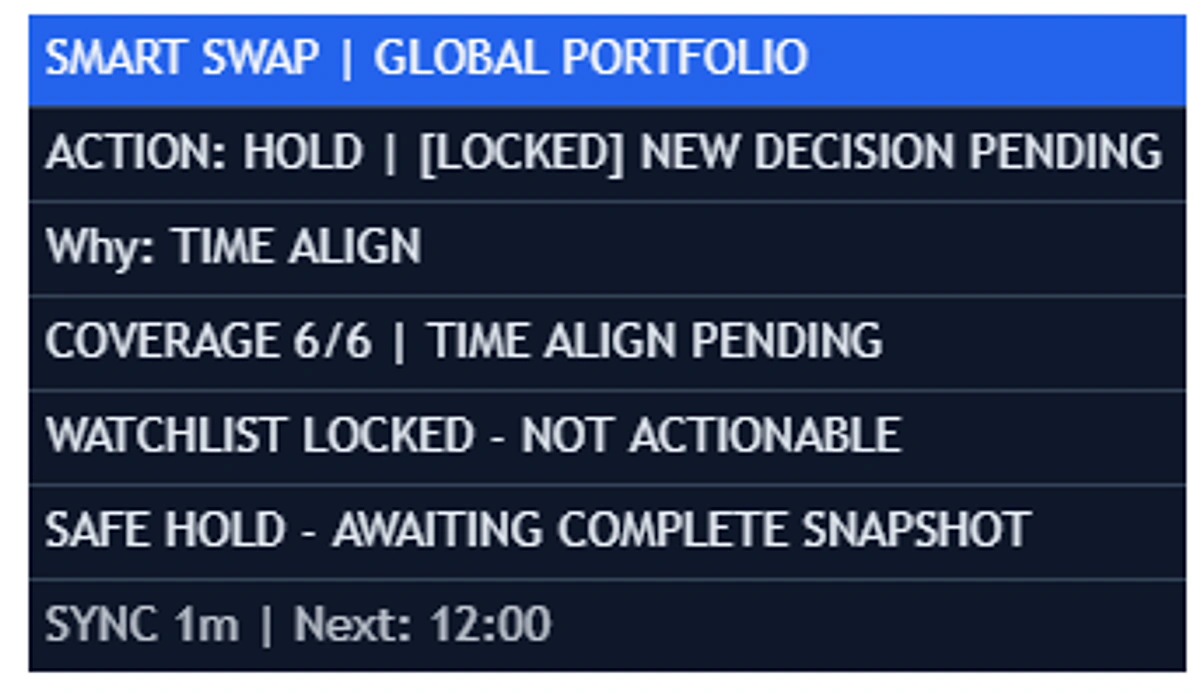
Start with the action row. In this capture, the output is HOLD, accompanied by a lock and a pending decision. Read the explanation next: TIME ALIGN. The panel then reports coverage of six out of six, while explicitly saying that alignment remains pending.
Coverage and readiness answer different questions. All six feeds can be present without forming a complete, time-aligned decision snapshot. The locked watchlist therefore remains non-actionable. The final synchronization row describes the next check in this capture; it does not promise that a rotation candidate will appear at that time.
A practical review note would say: “Feeds covered; alignment pending; HOLD retained; no qualified rotation to review yet.” Avoid replacing that explanation with a personal conclusion such as “the market is safe” or “all six assets should be held.” The status belongs to this configured comparison.
2. Distinguish the held portfolio from the comparison basket
Begin by checking whether the portfolio monitor is displaying an illustrative sample or the custom assets and quantities you entered. A sample portfolio demonstrates the interface. Its visible value, change or return is not your account history and is not an audited customer result.
For a custom portfolio, verify each active symbol and quantity against your own records. In the reviewed implementation, custom accounting uses USDT-quoted assets, entered starting value and cash, without automatic currency conversion. Do not interpret a mixed-currency account or a derivatives position as a supported spot-portfolio total. Check your installed version’s field descriptions before entering data.
The comparison basket is a second choice. It determines which alternatives the rotation workflow can review. The selected basket and active holdings need not be identical. Portfolio-only comparison and optional core-asset protection can further restrict that universe. A protected holding or an excluded target can explain why an expected pair does not appear.
Record portfolio mode, active holdings, selected basket, strategy and protection settings together. Two users looking at the same chart can receive different Smart Swap output because their configured comparison is different.
3. Separate relative strength from absolute return
A relative comparison describes one asset against another over a defined observation window. Suppose asset A declined 9% and asset B declined 4% over the same period. B performed five percentage points better than A, while both lost value. Relative outperformance does not establish an attractive absolute environment.
This is why broader market context, target quality, conflicts and persistence matter alongside a ranking. A temporary leader can remain a poor candidate for further emphasis if the surrounding conditions are weak or the data is incomplete. A visible WATCH state is not equivalent to a qualified rotation state.
Smart Swap’s ranking advantage, confidence and qualitative grade are analytical measures. They are not interchangeable with a percentage return or a probability. If the panel displays a raw Advantage score, do not read it as the percentage profit available by exchanging assets. Advanced diagnostics or alerts may add friction-adjusted context, but the units and interpretation still belong to the engine’s model.
4. Read the stage and its reason together
Panel layouts can be simplified, so the explanatory detail visible in one configuration may be hidden in another. Expand the status or diagnostic view when you need to understand a blocker. Use the actual reason rather than assuming every HOLD means the same thing.
| Observation | Interpretation | Next check |
|---|---|---|
| HOLD with alignment pending | A complete aligned decision snapshot is not ready | Source timestamps, coverage and the stated synchronization reason |
| WATCH candidate | A relative candidate deserves monitoring but has not reached the final stage | Unmet qualification conditions and persistence |
| Qualified / confirmed candidate | The configured analytical gates passed for this comparison | Exact source-target pair, chart context and independent execution review |
| HOLD with a blocker | The current comparison does not support rotation emphasis | Read the named blocker; do not reduce thresholds simply to produce a candidate |
| No visible candidate | The universe, layout or active mode may explain the absence | Basket membership, Smart Swap enablement, protection and status visibility |
5. Check the snapshot before refreshing more often
Smart Swap uses confirmed higher-timeframe data for actionable comparisons. The reviewed implementation aligns completed daily and four-hour context before allowing the corresponding decision output. Live dashboard movement and cache-health checks should not be mistaken for newly confirmed portfolio evidence.
A faster screen refresh does not make a developing source candle complete. When the interface is waiting, record the source timestamp and reason, then inspect the next valid update. Our confirmation-timing guide explains why a closed chart candle and a completed higher-timeframe source are different clocks.
Check analysis mode as well. Smart Swap can be intentionally disabled by a mode that prioritizes chart analysis or performance. If it is disabled, refreshing cannot create a missing rotation result. Preserve the settings that answer your actual review task, and compare observations only after recording any configuration change.
6. Review trading friction independently
Rotation can involve selling one asset and buying another. Fees, spread, slippage, order increments and available liquidity affect the implementation of that idea. Smart Swap’s friction model is an analytical allowance, not a live quote from your exchange’s order book.
As an arithmetic illustration, assume a 10,000-unit quote-currency rotation, with a 0.20% fee on each of two equal-notional legs. Those assumed fees total 40 quote units before spread or slippage. This is not a current exchange fee schedule, an actual fill, or the formula for the panel’s Advantage score. Use your own venue and order details for an execution assessment.
The candidate’s rank cannot settle whether the proposed rotation fits your risk limits, concentration or investment horizon. Check the source and target charts separately, examine their relationship to broader conditions, and retain the option to take no action. Qualification does not remove capital-loss risk.
7. Keep a short, reproducible review record
- Record the installed version, portfolio mode, basket, strategy and relevant protection settings.
- Read coverage, snapshot timing, stage and the stated reason before focusing on a target.
- For a candidate, identify the exact held source and comparison target, with their exchange-qualified symbols.
- Review broader market context, both charts and independent cost assumptions.
- Record the analytical result and your manual decision separately, including a decision to wait.
For notifications, distinguish candidate alerts from optional HOLD status notifications. A status update communicates engine state; it does not announce a completed transaction. Use the saved-configuration alert checklist after changing version, portfolio or strategy inputs.
Explore Trading Suite’s integrated chart and portfolio workspace. The product guide includes real interfaces, methodology, limitations and access details. Continue with the daily chart-review worksheet to put rotation context beside structure, confirmation and scenario risk. Smart Swap supports comparison; every account decision and execution remains yours.
Educational and risk disclosure
This guide is educational and analytical. It is not financial advice, a recommendation, a prediction, or a promise of results. Markets involve risk, including loss of capital. Verify information independently and remain responsible for your own decisions, execution and risk limits.
See the systems behind the framework.
Review the real interfaces, methodology, limitations and access terms before deciding whether an AGProLabs workflow fits your process.